


Converting YouTube to WAV, or “yt to wav” as the shorter search goes, is a two-step job on most tools: something downloads the video’s audio track, usually as M4A or WEBM, and something else turns that file into WAV. Of the six converters below, only VideoProc Converter AI and iSkysoft Free Video Downloader do both steps from a YouTube link. The other four are either downloaders that stop short of WAV or online converters that need a file you already have.
Every tool was checked against its own site in September 2026 for what it still does, what it costs and which formats it writes. That check corrected the 2025 version of this page in two places: CleverGet’s own spec sheet lists no WAV output, and Office Converter now takes uploads only, with a 3 MB limit on the free tier. Read the section on YouTube’s terms before you use any of them on content you do not own.
Key Takeaways
- Only two of the six converters, VideoProc Converter AI and iSkysoft Free Video Downloader, go from a YouTube link to a WAV file in one app.
- VideoProc Converter AI starts at $39.95 for a one-year subscription, with a lifetime license at $65.95 and a 30-day money-back guarantee.
- iSkysoft Free Video Downloader costs nothing, and its Extract Audio step writes MP3, M4A, WAV or MKA from downloaded videos.
- CleverGet’s spec sheet lists only WEBM and M4A audio output, so it needs a web converter as a second step to reach WAV.
- Office Converter’s free tier caps uploads at 3 MB, and its Premium tier, listed at $49.99 per year, raises the limit to 1 GB.
- YouTube streams compressed audio, so a WAV made from it edits and loops cleanly but carries no more fidelity than the video did.
- YouTube’s Terms of Service bar downloading content without authorization, which leaves your own uploads, Creative Commons videos and Audio Library tracks as the safe material.
YouTube to WAV Converters Compared
The columns that matter are the middle two, because a true YouTube WAV downloader, one app from link to file, appears on only two of the six rows. A tool that takes a YouTube link but cannot write WAV needs a second converter; a converter that writes WAV but cannot take a YouTube link needs a downloaded file first.
Tool | Type | Takes a YouTube link | Writes WAV | Price |
|---|---|---|---|---|
VideoProc Converter AI | Desktop app | Yes | Yes | From $39.95 per year; lifetime $65.95 |
iSkysoft Free Video Downloader | Desktop app | Yes | Yes, via Extract Audio | Free |
CleverGet Video Downloader | Desktop app | Yes | No (M4A or WEBM audio) | $49.95 per year list; lifetime $79.95 list |
Online Convert | Web converter | No (file uploads or direct file links) | Yes | Free with limits |
Office Converter | Web converter | No (uploads only) | Yes | Free up to 3 MB; Premium $49.99 per year list |
DocsPal | Web converter | No (uploads only) | Yes | Free |
Source: videoproc.com, itube.aimersoft.com, cleverget.org, online-convert.com, office-converter.com and docspal.com, read September 5, 2026.
What is the best YouTube to WAV converter?
VideoProc Converter AI if you want one paid app that handles the download and the WAV output; iSkysoft Free Video Downloader if you want the same in a free desktop tool. Every other option here needs a second step.
How to Convert YouTube to WAV
Whichever tool you pick, a YouTube to WAV download follows the same four moves, and the last two are where the YouTube to WAV audio actually gets written.
- Copy the video’s URL from the browser address bar or the Share button.
- Paste it into a downloader (VideoProc, iSkysoft or CleverGet) and let it fetch the audio track.
- If the downloader offers WAV, choose it. VideoProc lists WAV (PCM) among its audio outputs; iSkysoft’s Extract Audio step lists MP3, M4A, WAV and MKA.
- If it does not, take the M4A or WEBM it saved and run it through an online converter that writes WAV, such as Online Convert or DocsPal.
One thing no converter can fix: YouTube streams compressed audio, so a WAV made from it is a lossless container around a lossy source. You get a file that edits cleanly and loops without gaps, which is the real reason to want WAV, but not more fidelity than the video carried.
Can I convert YouTube to WAV online for free?
Not directly from a YouTube link with the tools on this list. Online Convert, Office Converter and DocsPal write WAV from a file you upload, so you need a downloaded M4A or MP3 first. Office Converter’s free tier stops at 3 MB.
6 Ways to Convert YouTube to WAV
1. VideoProc Converter AI

Desktop downloader and converter
VideoProc Converter AI
Best for one paid app that goes from a link to a WAV file
VideoProc Converter AI is the one paid YouTube to WAV downloader on this list that goes from a link to a WAV file without help. Its site lists downloads from more than 1,000 websites, YouTube among them, and an audio converter with WAV (PCM), FLAC, MP3, AAC and OGG outputs, with the option to trim and adjust bitrate before you save. Plans on the site start at $39.95 for a one-year subscription, with a lifetime license for 3 to 5 PCs at $65.95, and a 30-day money-back guarantee.
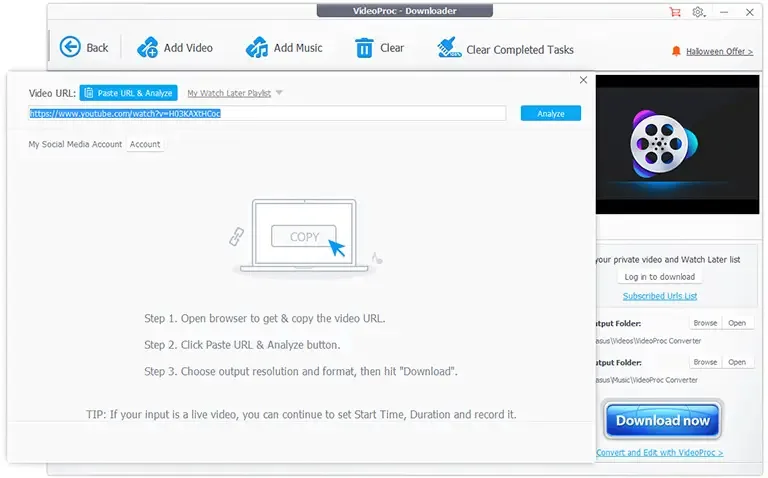
Copy the URL, open the Downloader module, add it, then pick WAV in the format list, or save as MP3 and convert inside the same app. The free version exists but is limited; the site is upfront that the full feature set is paid.
2. iSkysoft Free Video Downloader
Free desktop downloader
iSkysoft Free Video Downloader
Best for a free desktop route from link to WAV
iSkysoft Free Video Downloader, published by Aimersoft under the iTube name, is the free route that still reaches WAV. Its page lists downloading YouTube videos, an Extract Audio function that writes MP3, M4A, WAV or MKA from downloaded videos, and a built-in player. It is a desktop program rather than a website, so there is no upload limit to think about.
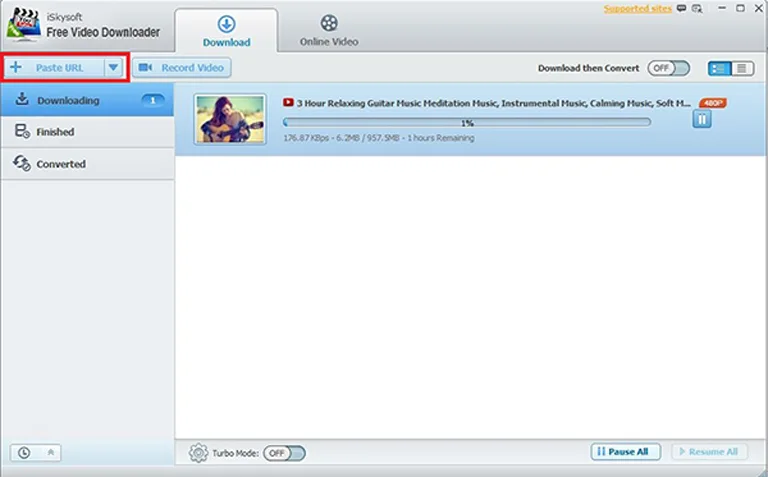
Download the video first, then use Extract Audio and pick WAV. Expect the installer to offer the company’s paid products along the way; the downloader itself is the free part.
3. CleverGet Video Downloader

Desktop video downloader
CleverGet Video Downloader
Best for saving the video itself or a quick M4A
CleverGet, from Leawo, is a capable downloader that is not a WAV converter, and this page said otherwise in 2025. Its spec sheet lists output video formats of MP4, MKV, WEBM and 3GP and output audio formats of WEBM and M4A only. Use it when you want the video itself or a quick M4A, then convert that file with one of the web tools below. The site lists a one-year license at $49.95 and a lifetime license at $79.95, both shown with discounts on the page, for Windows 7 through 11 with a separate Mac edition.
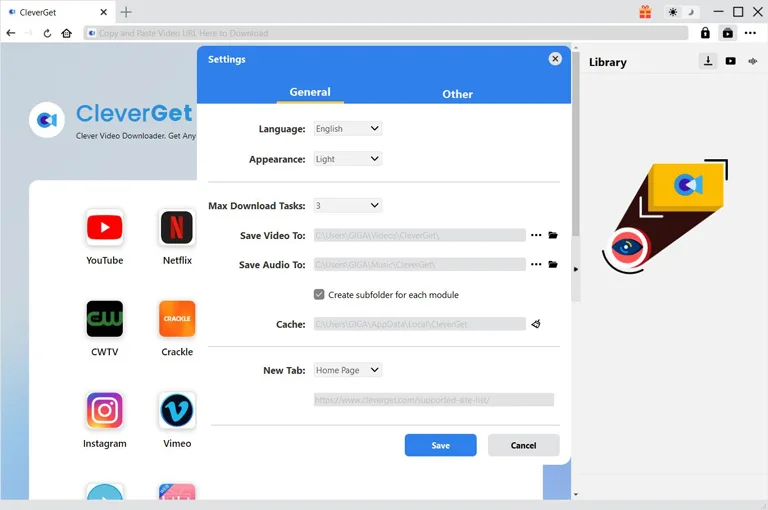
Worth noting: CleverGet’s own page carries a fair-use policy stating the software is intended solely for personal, educational and non-commercial use, which is the same line YouTube draws below.
4. Online Convert

Online file converter
Online Convert
Best for the second step after a downloader
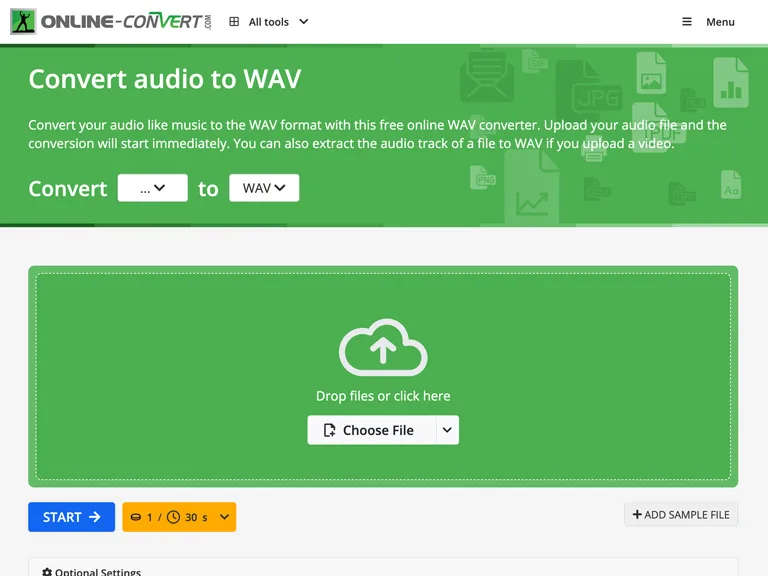
Online Convert’s audio tool at audio.online-convert.com writes WAV from an uploaded file or a direct file link, with options for sample rate and channels. Its URL field is for files, not for a YouTube page, so it is the second step after a downloader rather than a replacement for one. It is free within the site’s size and daily limits.
5. Office Converter

Browser upload converter
Office Converter
Best for short files from your computer, Google Drive or Dropbox
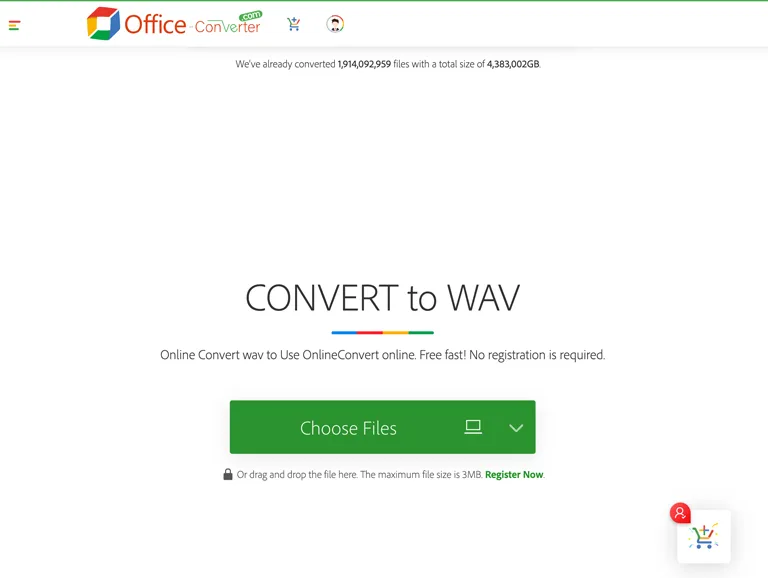
Office Converter’s WAV page accepts a file from your computer, Google Drive or Dropbox and converts it in the browser. The free tier caps uploads at 3 MB, which rules out most full-length audio, and the Premium tier, listed at $49.99 per year with a discount on the page, raises the limit to 1 GB. The 2025 version of this page described pasting YouTube URLs here; the current page offers uploads only.
6. DocsPal

No-account upload converter
DocsPal
Best for a one-off conversion of a file you already downloaded
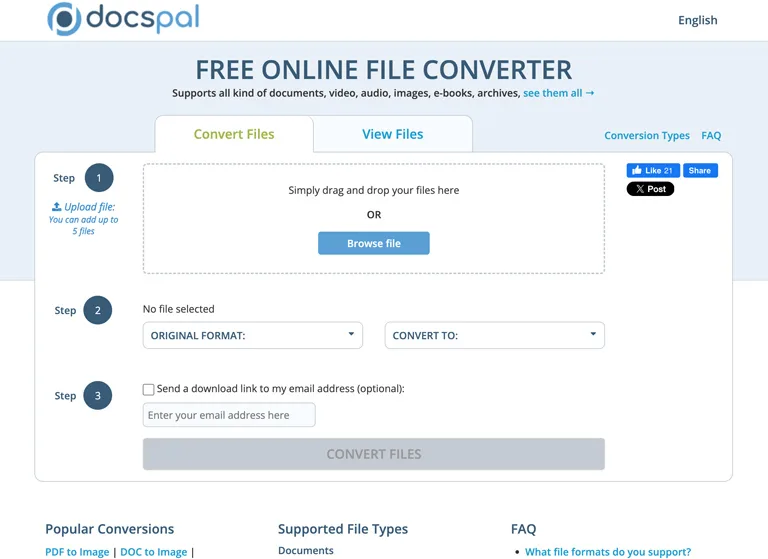
DocsPal is a free upload converter whose audio list includes WAV, MP3, OGG, FLAC and WMA, alongside document and image formats. It has no YouTube input and no account, so it suits a one-off conversion of a file you already downloaded. Its FAQ covers how long converted files stay on its servers, which is worth reading before uploading anything private.
Does converting YouTube to WAV violate YouTube’s terms?
Often, yes. Under “Permissions and Restrictions”, YouTube’s Terms of Service state that you are not allowed to “download… or otherwise use any part of the Service or any Content” except where the Service expressly authorizes it or you have written permission from YouTube and the rights holder. A downloader pointed at someone else’s video sits outside that permission, and for copyrighted music it can also infringe the owner’s rights, whatever the tool’s marketing says.
What stays inside the lines: your own uploads, which you can download from YouTube Studio without any third-party tool; videos whose owners license them for reuse, such as Creative Commons uploads and the YouTube Audio Library; and content you have permission to use. YouTube Premium’s offline downloads are authorized but stay inside the YouTube app, so they are not a route to a WAV file. Use the tools above for material you own or are allowed to use, and treat “it is only for personal use” as a limit the tools themselves acknowledge, not a license.
Is it legal to convert YouTube to WAV?
YouTube’s terms prohibit downloading content without authorization, and copyright law governs the music itself. Converting your own uploads, Creative Commons videos or Audio Library tracks is fine; converting someone else’s copyrighted upload generally is not, whether or not a tool makes it easy.
Why convert to WAV instead of MP3?
Turning a YouTube video to WAV makes sense for one reason. WAV stores uncompressed PCM audio, which is why editors, samplers and DJ software prefer it: every edit is exact, there is no encoder delay at the start of the file, and a loop point lands where you put it. MP3 trades that for size. For listening on a phone, MP3 or M4A is the sensible choice; for cutting a sample, building a loop or importing into an editor, WAV is. Just remember the earlier point that a WAV made from a YouTube stream cannot recover detail the stream never had.
Is a YouTube to WAV file better quality than MP3?
Not in the way people hope. The WAV is lossless, but the source audio YouTube served was already compressed, so the WAV preserves that quality rather than improving it. Its advantage is editing and looping, not fidelity.
Does YouTube to WAV 4K give better audio?
No. Resolution describes the picture; the audio track is served separately at its own bitrate regardless of whether you download the 4K or the 720p version. Downloading the smaller video and extracting audio gets the same result faster.
Is it YouTube to WAV or YouTube to wave?
The same thing. WAV is short for Waveform Audio File Format, so “YouTube to wave” and “YouTube to WAV format” describe one conversion, and the file you get ends in .wav either way.
Want YouTube on your TV instead? Here is how to activate YouTube on a TV.
Which YouTube to WAV option should you use?
Pick by how many steps you are willing to take. VideoProc does it in one app for a price, iSkysoft does it in one app for free, and to download YouTube to WAV with CleverGet you add any of the three web converters as step two. The decision that outranks the tool is whose video it is: for your own uploads or licensed material, any of these works; for anything else, YouTube’s terms and the rights holder come first.
Whichever route you choose, expect the result to sound exactly like the video and no better, and check the vendor’s page for the current price, since every paid tool here shows a discounted figure that changes. If your goal is background music for a project rather than a specific video, YouTube’s Audio Library gives you tracks you may use, with no converter involved.

Vicky
Amazing converter, superb. Thanks for sharing it.
Imam
It’s a really helpful converter for YouTube.
Ruth Ramirez
This converter will definitely help me, thank you for letting us know!
Sumina
Oh wow, thank you for this. This has really helped me convert my YT videos easily. Before, I was having such a hard time converting my YT videos because I didn’t use any reliable conversion apps. But thanks to this, I can easily convert my videos without hassle.