



Disclosure: Bluehost paid TechLila for this post on how to use Bluehost AI Builder, and the Bluehost links on this page are affiliate links. The steps we followed and the opinions here are ours.
Bluehost AI Builder is $0 to start, no credit card, with 5 credits a day, up to 30 a month on its Free plan, according to Bluehost’s pricing page. On November 26, 2026, we used that plan to build a home yoga studio website for Bengaluru, and the build took about 6 minutes.
One prompt produced the schedule, prices, testimonials and a booking form, plus an admin dashboard to run them. That build shows how to use Bluehost AI Builder from prompt to published site. Each of the seven steps below covers what to type and what appears on screen, with the time and credit cost wherever we measured them. The section after them lists the sample details the builder leaves behind, because those are what you need to fix before anyone sees the site.
Key Takeaways
- The Free plan is $0 with no credit card and includes 5 credits a day, up to 30 a month.
- Our build took about 6 minutes and asked 1 question.
- That build cost 1 credit; the first build on the account cost none.
- One message uses one credit and the AI’s clarifying questions are free, according to Bluehost; our single-part edit cost 1 credit, though a two-change message on our bakery test site cost 2.
- Business details edits and publishing cost 0 credits.
- Publishing took about 4 to 5 minutes, and your free address can’t be changed, and it isn’t indexed by search engines.
Before You Start
Bluehost AI Builder needs a browser, an account and a clear picture of the business the site is for. Sign-up is quick: You can create an account using Continue with Google, Continue with Apple, or Sign up with email.
Per Bluehost’s help center, the AI Builder Free plan has no end date and doesn’t require a card, and your remaining credits are shown in the chat box while you work. That makes the Free plan a safe place to try every step below.
Before you start: Write down your business name, address, phone number, opening hours and prices, and gather a logo or a few photos if you have them. The builder fills every gap with samples, and replacing them later is the slowest part of the job.
Step 1: Open Bluehost AI Builder and Describe Your Site
Bluehost AI Builder is a chat-based website builder that builds a site from a description, sold separately from Bluehost WordPress AI Builder and its WordPress hosting. On bluehost.com, click the Build tab in the top menu, then select AI Builder, or go straight to bluehost.com/ai-builder, and type your request into the Describe it in your own words prompt field.
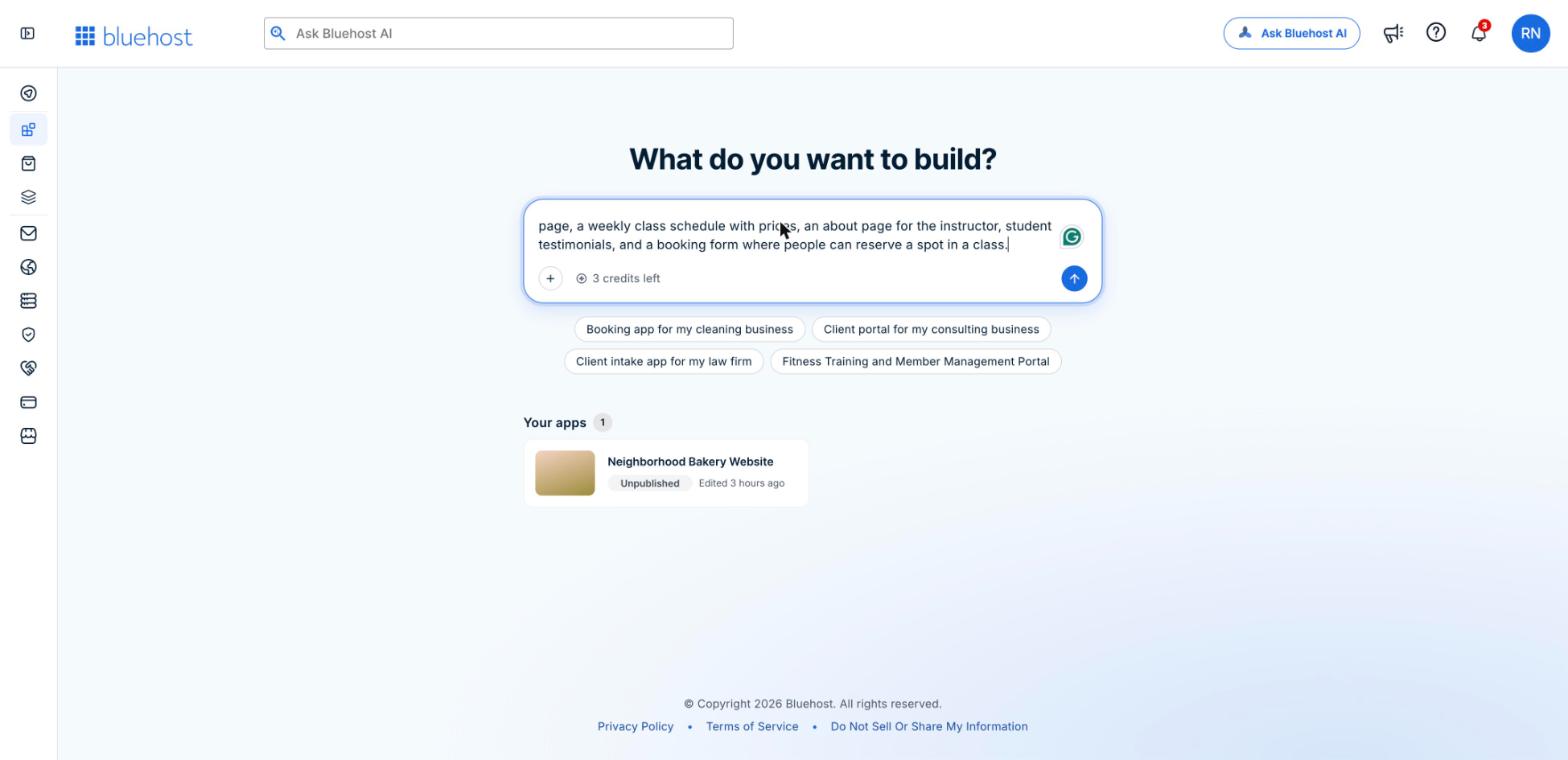
Bluehost’s help center says a good prompt covers whether you want a website, a web app, or both, your business, service, or project, your target audience, pages or features you want to include, and any design preferences. Writing it works like writing custom AI commands: Name the job, the inputs and the result you expect.
Our prompt asked for a home yoga studio site in Bengaluru. It listed a home page, a weekly class schedule with prices, an instructor section, testimonials and a booking form.
Press the build button and sign in. The editor opens with the chat on the left and the preview on the right, and it shows “Reading your prompt” and then “Understanding your business”, each with a note that it can take up to a minute.
Is Bluehost AI Builder free?
Yes, to start. Bluehost AI Builder Free costs $0, needs no credit card. It includes 5 credits a day, up to 30 a month, and publishes on a Bluehost subdomain. Paid plans add monthly credits and your own domain, which the pricing section below covers.
Step 2: Answer the Clarifying Question
Bluehost AI Builder pauses when something about your business is unclear. AI Builder asks up to three short questions, each with a few options and one marked as recommended, and per Bluehost’s AI Builder FAQ, the AI’s clarifying questions are free. Our yoga build asked one question and spent no credit on it.
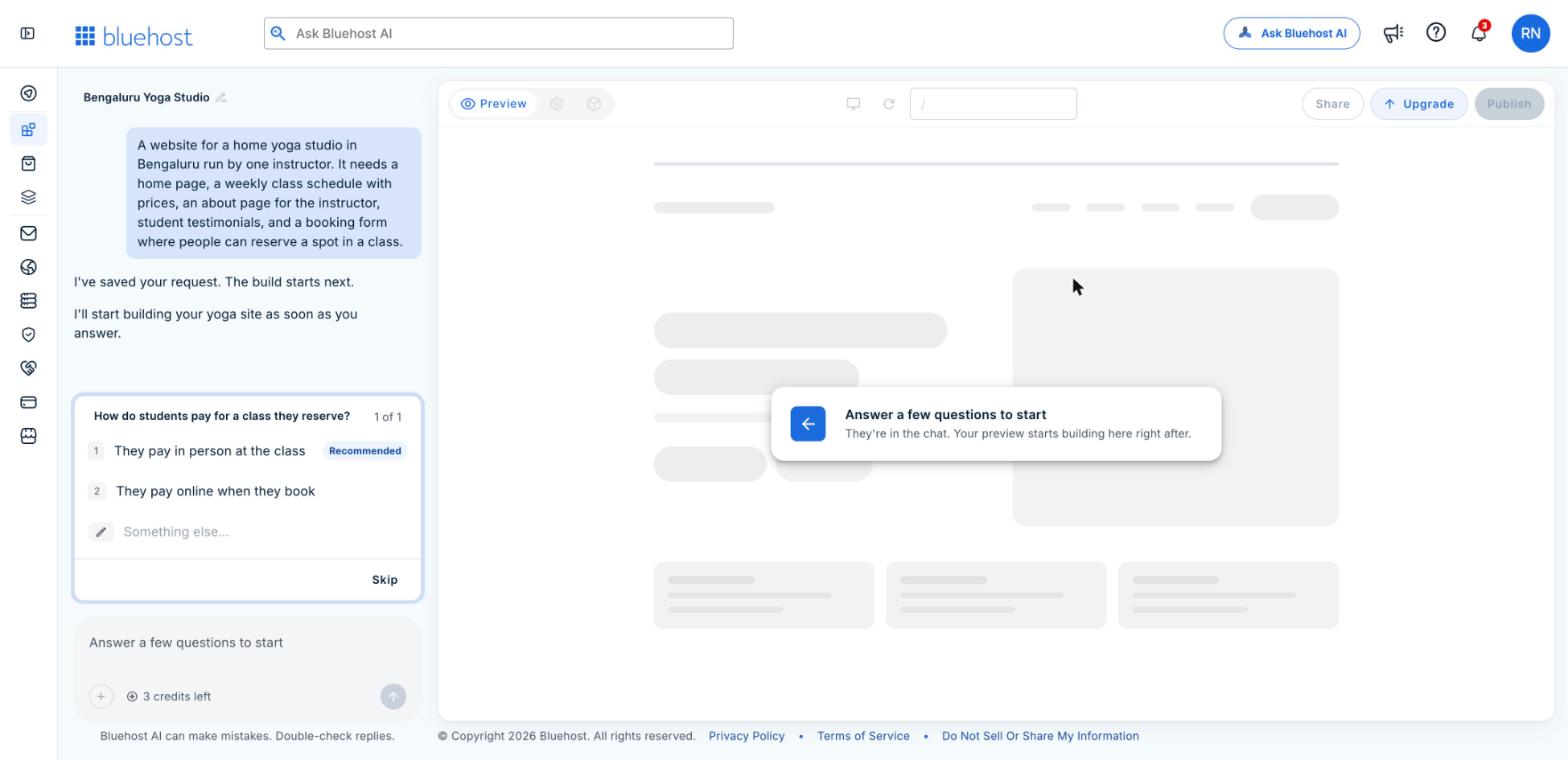
The card asked how students pay for a class they reserve, with three choices: Pay in person at the class (marked Recommended), pay online when they book, or something else. The preview stayed empty with a note to answer in the chat before it starts. We picked pay in person, and the assistant replied that it was carrying on and moved to planning the app.
You can also skip the card. If you skip them, AI Builder uses the recommended answers and starts right away. Another card asks a few profile questions, such as whether you are a business owner or a freelancer; the card says they tailor your tips and next steps, and every one can be skipped.
Step 3: Let the Build Run
Bluehost AI Builder builds the opening version on its own once the question is answered. A checklist ticks off as each part is built. You can close the tab or walk away. Our build finished about 6 minutes after we sent the prompt, question pause included, and used 1 credit.
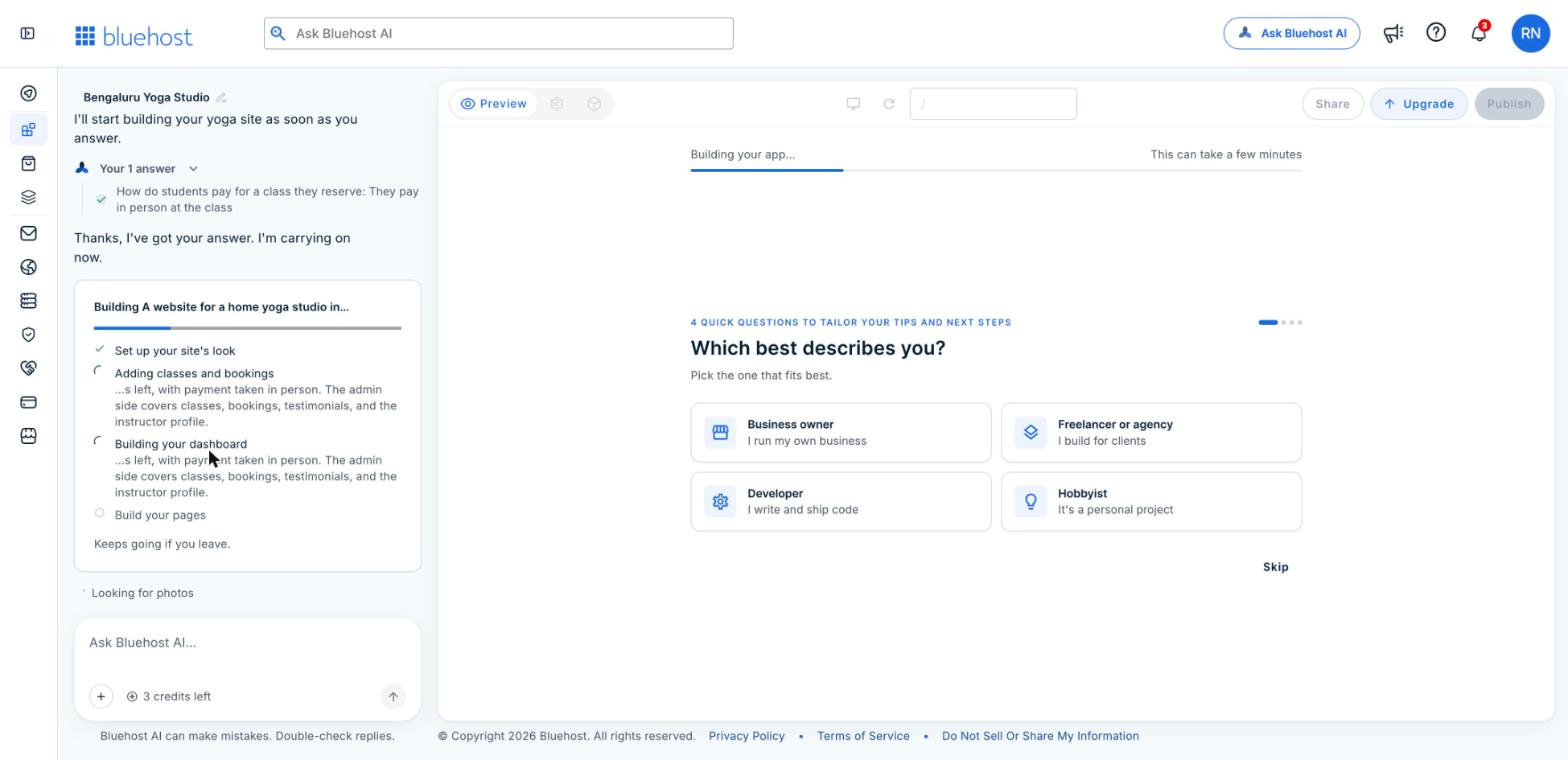
Our checklist listed setting up the site’s look, adding classes and bookings, building the dashboard and building the pages, with a line saying the build keeps going if you leave. A “Looking for photos” stage ran near the end. We judged it the way we judged the video agent in our Flova AI review: one plain prompt, then single follow-ups. The first build on the same account, a bakery site, had left the meter untouched, so on our account only the opening build was free.
How long does Bluehost AI Builder take to build a site?
A few minutes for a small business site. The AI can often build a first version of your app in minutes. Most of your time goes into reviewing, testing, and refining it until it’s ready to be shared, Bluehost says. In our test, too, the build was the short part and checking the sample content took longer.
Step 4: Review What the First Version Made
Bluehost AI Builder hands back a finished multi-page site rather than a template to fill. Ours had 6 pages in a light sea-glass green, including a weekly schedule with prices and a booking form where students pay in person. Bluehost AI Builder writes content-filled pages for your business and generates page titles, descriptions, headings and alt text automatically.
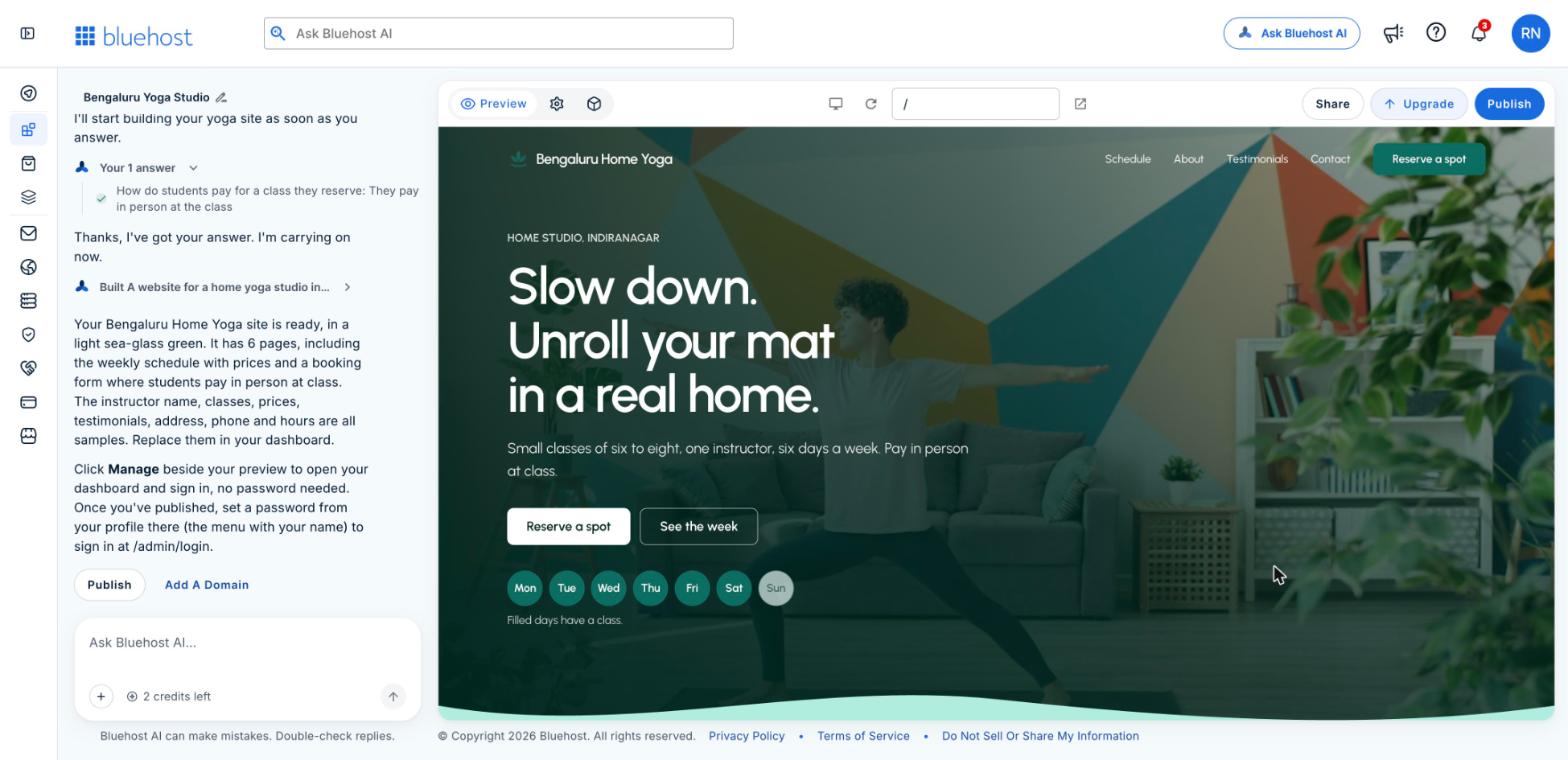
The home page opened with a calm headline about unrolling your mat in a real home and two buttons, one to reserve a spot and one to see the week. Below it sat a “Coming up this week” strip with real upcoming dates and spots left, then eight class cards with the day, time, level, length and price in rupees. The builder also picked a neighborhood for the studio, Indiranagar, without being asked.
The reserve page asks for the class, a date, the student’s name, phone and email, and notes about injuries, pregnancy or being new to yoga. Your site or app appears in a preview beside the chat, but the address box in the toolbar kept showing the home path on subpages, so check which page you are on by its heading.
Step 5: Edit by Chat, One Change per Message
Bluehost AI Builder changes your site when you describe the change in the chat. In Bluehost AI Builder, one message uses one credit, according to Bluehost, and our single-part request for a short frequently asked questions (FAQ) section cost exactly 1 credit.
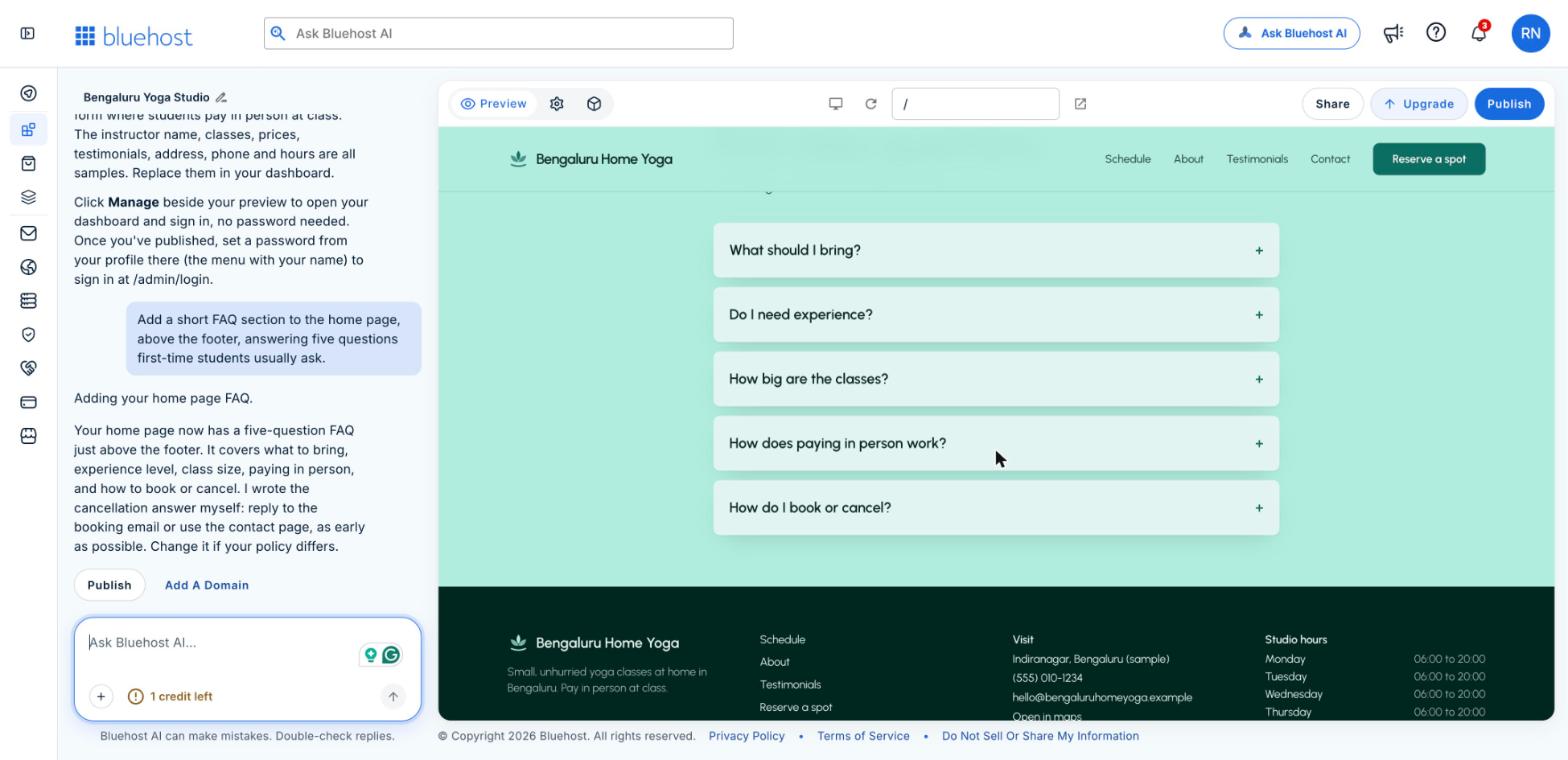
We asked for a short FAQ section on the home page, above the footer, answering five questions new students usually ask. About a minute later the home page had an accordion of new-student questions covering what to bring, experience level, class size, paying in person and how to book or cancel. The assistant said it had written the cancellation answer itself and asked us to change it if our policy differs, so read any policy text the AI invents.
On the bakery site from our Bluehost AI Builder review, though, one message asking for two changes cost 2 credits, so in our edit tests each change in a message cost a credit. The counter also turns amber with an exclamation mark when one credit is left.
Pro tip: Write each chat request as one change in one place, such as a five-question FAQ above the footer on the home page. Save factual edits like your phone number and hours for the dashboard in Step 6, where they cost nothing.
How do Bluehost AI Builder credits work?
Bluehost counts the Free plan’s day in Coordinated Universal Time (UTC). On the Free plan, your daily allowance resets at 00:00 UTC, and the 30-day limit is counted from the date you signed up, not the calendar month. If you use all your credits, your published site or app stays online, and only new changes pause. We read the meter before and after every request, the same way we track Raycast AI credits, which is how we know our FAQ edit cost 1 credit.
Step 6: Replace the Sample Details in the Dashboard
Bluehost AI Builder fills the business facts you did not give it with samples, and the dashboard is where you replace them without spending credits. Every web app made with Bluehost AI Builder has an admin panel where your team can view submissions, edit data and manage users. Saving our new address there cost 0 credits.
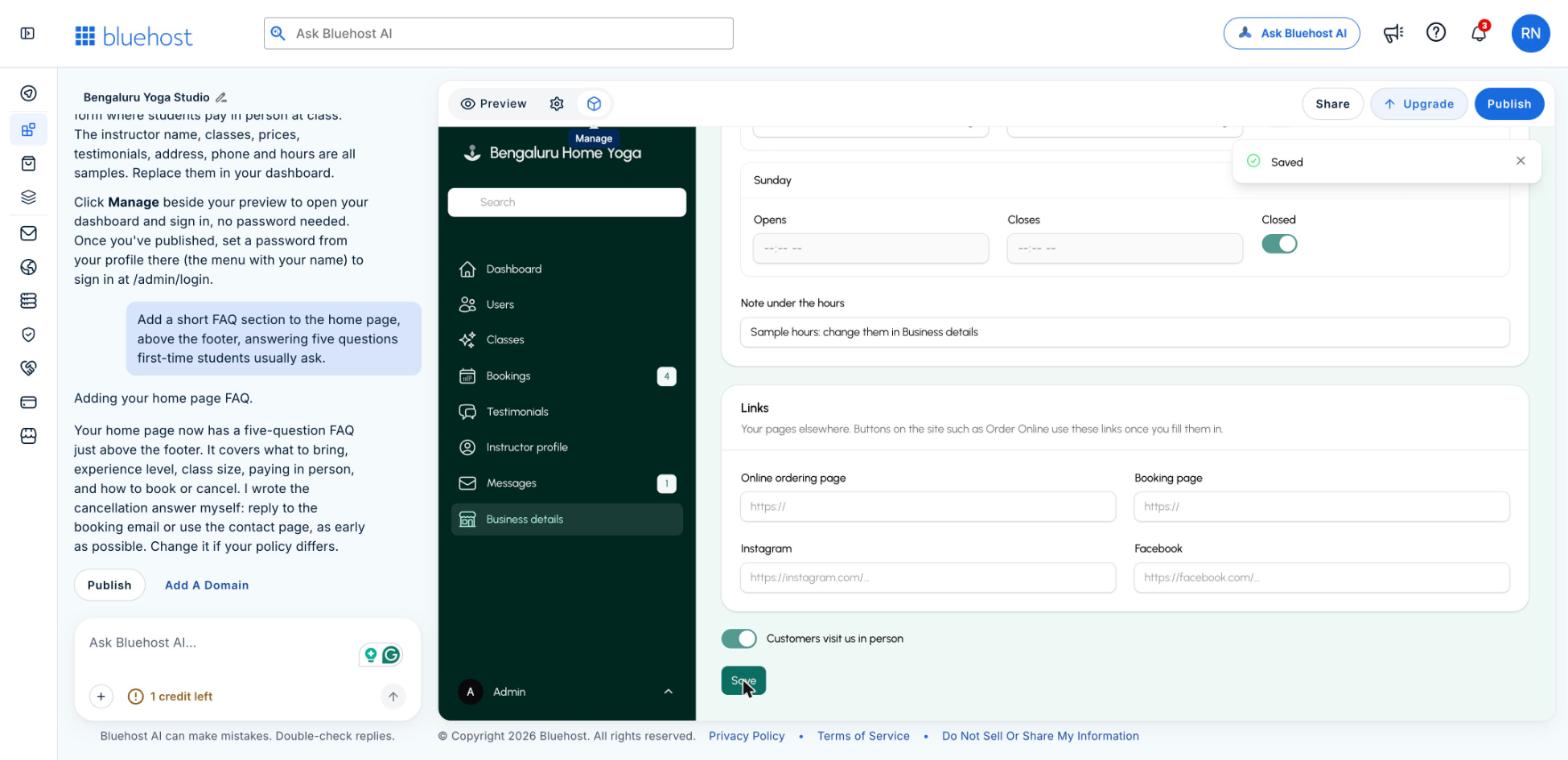
Open Manage, the cube icon beside the preview. Our yoga site’s sidebar listed the dashboard, users, classes, bookings, testimonials, the instructor profile, messages and business details. Business details holds the phone and email shown in the footer and on the contact page, the address with an optional map link, opening hours for each day with a closed switch, a note under the hours, and links for a booking page, Instagram and Facebook.
Change a field and press Save; ours confirmed with a “Saved” message. Changes to your business name, business details, or prices go live right away, after AI Builder asks you to confirm, so these edits do not wait for the next publish.
Step 7: Publish to Your Free Address
Bluehost AI Builder keeps the site private until you press Publish in the upper right corner. If you haven’t connected a custom domain yet, you can publish your site or app using a free Bluehost address: [project-name].app.bluehost.ai. Publishing took about 4 to 5 minutes and cost 0 credits.
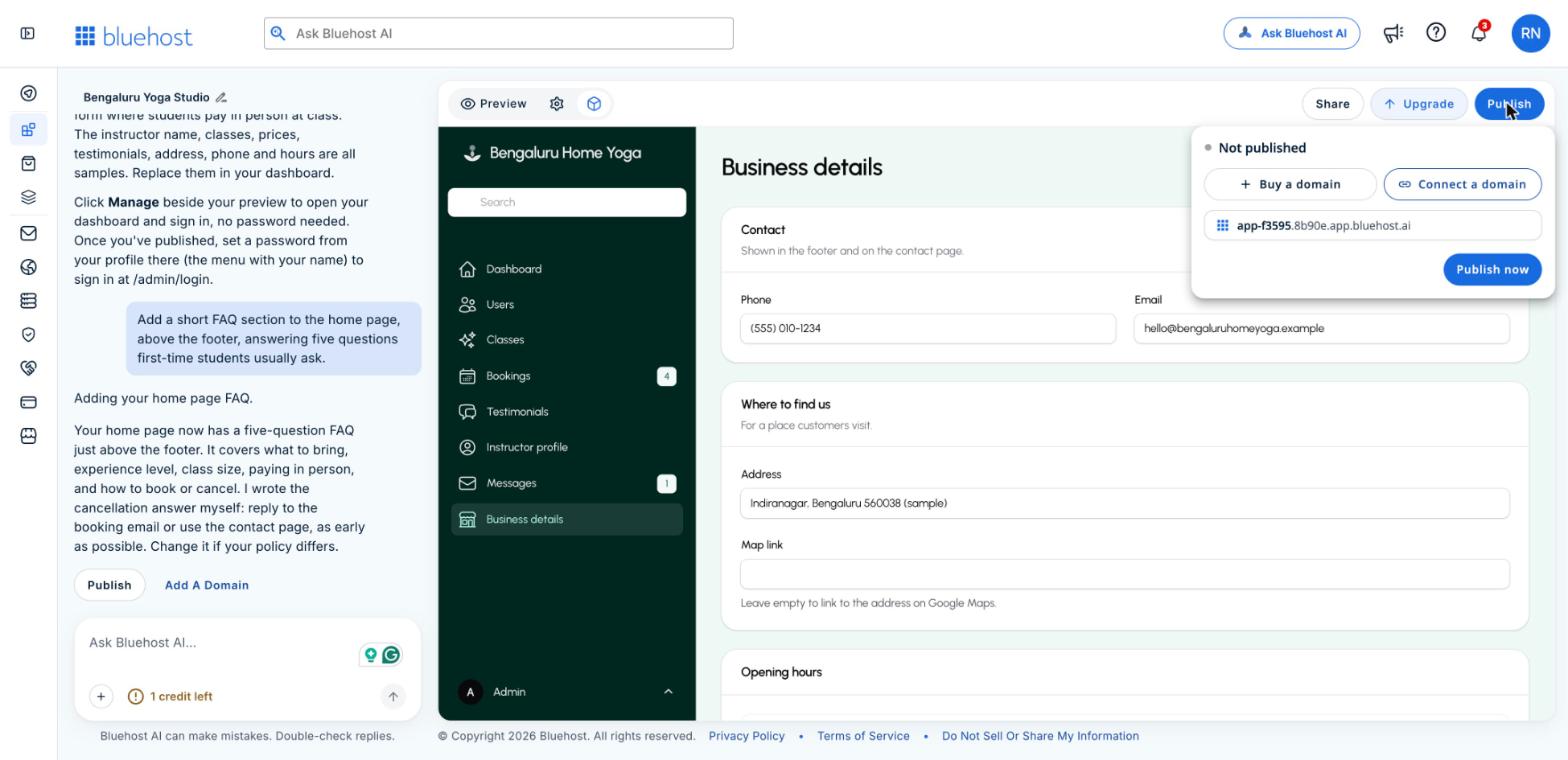
The panel shows the site as not published and offers Buy a domain, Connect a domain, the free address and a Publish now button. After we pressed it, the button showed “Publishing” with a note that we could close the panel and keep working, then switched to “Published” with an Open site link and a grayed-out Publish changes button.
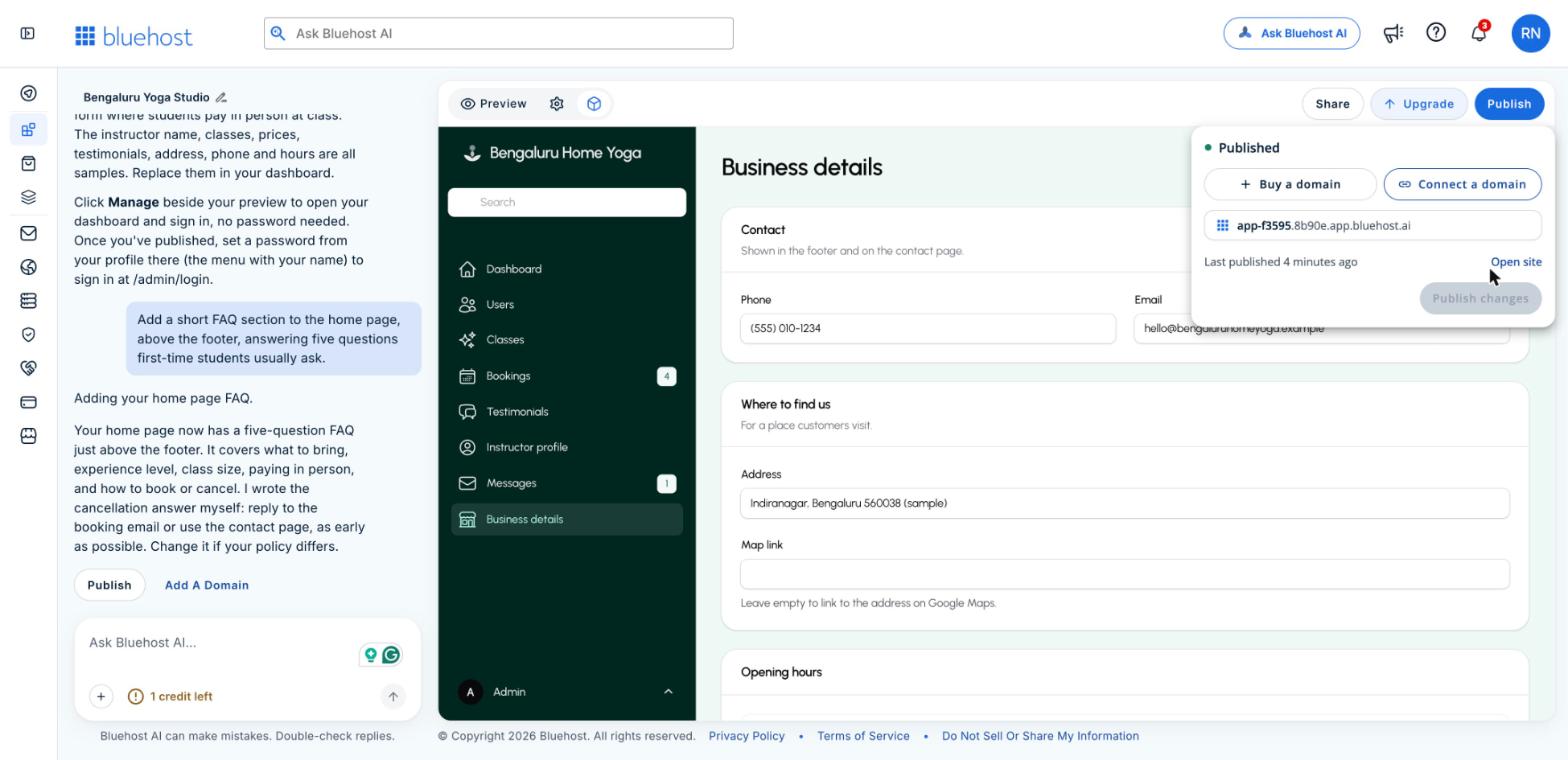
Both domain options start an upgrade on the Free plan, and Buy a domain bundles it with the purchase: If you’re on the free AI Builder plan, this opens a combined checkout where you can purchase a domain and upgrade to the Lite plan.
Bluehost is clear about the free address: Your free address can’t be changed, and it isn’t indexed by search engines. We checked ours, and it answered with a noindex, nofollow robots header, which keeps it out of search results.
The free address stays out of search: A Free-plan site works as a preview, a QR code target or a link you send to customers, but search engines skip it. Move to a paid plan and connect your own domain before you rely on search to bring customers in.
Can I use my own domain on the Free plan?
No. With Bluehost AI Builder, paid plans let you connect a domain you already own. The Free plan publishes on a Bluehost subdomain. A domain bought through the Publish dialog also needs one more step: After purchase, your domain appears in the Domains tab but isn’t connected to your site or app automatically.
What to Fix After the Build
Bluehost’s help center tells you to remove any private or test data, such as names, phone numbers, or passwords before you publish, and our yoga build had plenty of it. We found 3 testimonials and an instructor marked (sample), plus a US-format sample phone on a site priced in rupees. Work through this list before you share the link.
- Phone number: The sample was a US-style (555) number in the footer and in Business details, even though every price was in rupees.
- Names and testimonials: The instructor and every testimonial carried a “(sample)” tag. Replace them with real ones or delete them, and never publish testimonials nobody gave.
- Photos: The stock images repeated the same two models across the class cards, so upload your own photos through the chat.
- Address and hours: The builder chose a neighborhood and sample hours, with a note under the hours telling you to change them in Business details.
- Sample bookings: The dashboard listed sample students with confirmed, pending and canceled statuses, and preview and live versions share the same database, so any test data added during development will appear in the live app until it is removed.
- Policy text: The assistant wrote a cancellation answer on its own, so check it against your real policy.
What Bluehost AI Builder Costs After the Free Plan
Bluehost AI Builder is $0, no credit card required, to start, and the upgrade dialog we opened listed paid plans from $20/mo on monthly billing. On yearly billing, Lite is $16.00/mo billed yearly at $192.00, with up to 100 credits per month.
View the data
Pro’s 400 credits are 4 times Lite’s 100, and AI Builder Lite, Standard, and Pro are otherwise the same. The only difference is how many credits you get each month. Bluehost also sells extra credits, and per its help center, Top-ups are available on every plan, including Free. Credits work differently in Setapp’s AI credits, which come bundled with an app subscription rather than sold as the product itself.
Whether to pay comes down to the same test as any free vs paid software choice. The Free plan builds and publishes a working site, but it cannot put that site on your domain or in search. If those limits suit a trial run, start a free Bluehost AI Builder site and judge the output on your own prompt.
Let an AI Agent Check Your Site for Leftover Sample Content
An AI agent that can browse the web can read every page of your published Bluehost AI Builder site and list the sample details still showing, without signing in to your account. The prompt runs in 4 phases: measure, report, plan and re-check. Fill in your site address and your real business details in the My details lines, then paste the prompt into the agent.
Goal: Check my published website for leftover sample content before I share it. Don't change anything; I'll make every fix myself.

My details:
- Site address: [your .app.bluehost.ai address or your own domain]
- Real business name, phone and email: [fill in]
- Real address and opening hours: [fill in]

Ground rules:
- Read the pages only. Never sign in, never fill in or submit a form, never make a booking.
- Never guess. If you cannot read something, write "not checked".
- Never ask for, type or repeat a password.

Phase 1, Measure (no changes): Open every page linked from the menu and the footer. Note each phone number, email, address, opening hour, person's name, testimonial, price and photo, and anything marked "(sample)" or ending in ".example".

Phase 2, Report: In two sentences, say how much sample content remains and which page has the most. Then give one table with columns Check, Reading and Verdict, where Verdict is 🟢 matches my details, 🟡 unclear or generic, or 🔴 sample or wrong.

Phase 3, Plan, then wait: List the fixes in order of how visible they are to a customer, and say for each whether it belongs in Business details or in a chat request. Stop and wait for me.

Phase 4, Re-check: When I say I've made the fixes, run Phase 1 again and show the old and new readings side by side.
One row from our yoga site would read: Footer phone | (555) 010-1234 | 🔴. Run the prompt only on a site you own, keep it read-only, and make every fix yourself in Business details or the chat; the agent never needs your Bluehost password.
Is Bluehost AI Builder the same as the WordPress AI Builder?
No, Bluehost sells them as two separate products. Bluehost WordPress AI Builder comes with WordPress hosting plans and creates a site you manage in WordPress, while AI Builder runs on credits and needs no WordPress knowledge.
Choose the WordPress route if you want themes, plugins and a site you can move to another host; choose AI Builder if you want a working booking or contact site built from a description. The steps above apply only to AI Builder.
Will a Bluehost AI Builder site show up on Google?
Not on the free address, according to Bluehost. Free sites and apps go live on an automatically generated Bluehost AI Builder address ending in .app.bluehost.ai. The address can’t be changed and isn’t indexed by search engines.
On a paid plan with your own domain, the generated titles and descriptions help, but rankings still depend on your content, location and competition, so no builder can guarantee a position. Real photos, real prices and your own wording give those pages more to work with than the samples do.
Conclusion: How to Use Bluehost AI Builder Without Wasting Credits
Bluehost AI Builder is $0 to start, no credit card, and our yoga studio site went from prompt to finished build in about 6 minutes for 1 credit, with paid plans from $20/mo on monthly billing once you need your own domain. The build itself is the easy part; replacing the samples is where your time goes.
Write one detailed prompt, answer the question it asks, send one change per chat message, and make factual edits in Business details, where they cost nothing. Publish on the free address to test it, then try Bluehost AI Builder free with your own business in the prompt.

Leave a comment
Have something to say about this article? Add your comment and start the discussion.