



Flova AI is a video platform where you describe a film in chat and an agent plans the script, storyboard, media and edit inside one project. We tested it on a member account holding about 2,100 credits. One short brief became a finished 15-second film in about 12 minutes, with the same two characters in every shot. One specific head movement took two tries with the agent without landing, then worked on the first try in the manual Generator.
That makes Flova a strong choice for getting from an idea to a polished first cut, with the Generator on hand when one shot needs exact control.
What is Flova AI?
Flova AI brings image, music and video models together under one agent. You can start from an idea, or upload a script, image, video or audio as a reference. Scripts, storyboards, media and edits stay in the same project, so the agent can continue from what already exists instead of asking you to explain it again.
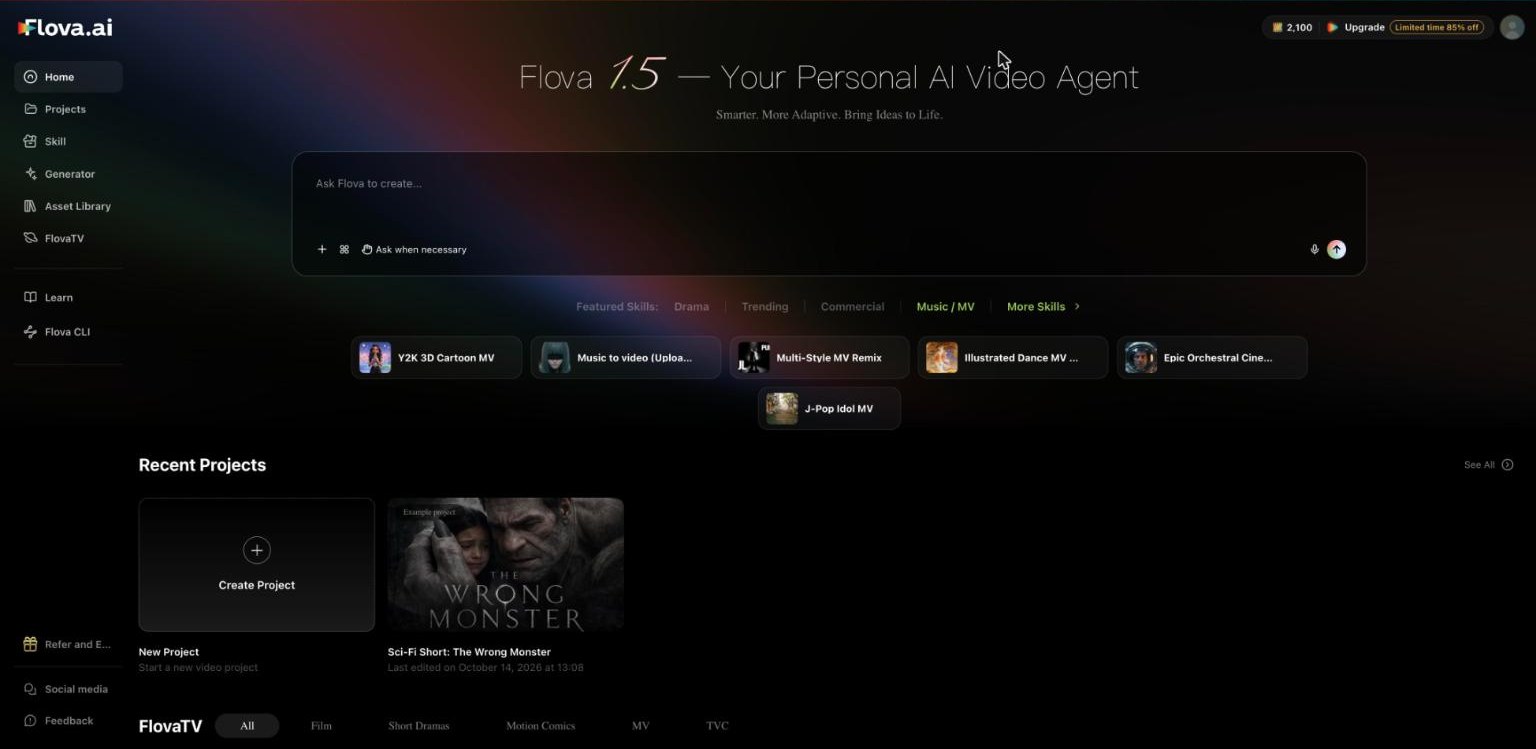
Its documentation aims the product at first-time users, social media creators, small brands and production teams. The home page, shown below, has a chat box, featured Skills and your recent projects. If you would rather film yourself, our list of the best webcam software is a simpler place to start.
Flova’s own introduction to version 1.5 is a quick way to see the interface in motion:

How We Tested Flova
We ran these tests on 2 and 3 November 2026 in a browser, with the agent in its “Ask when necessary” mode.
Test | Time | Credits | Result |
|---|---|---|---|
One brief to a finished 15-second film | About 12 min | 467 | Finished film, with one detail the agent flagged |
Revise only the middle shot | About 13 min | 184 | Agent kept the original film and offered another try |
One community Skill | About 2 min on retry | 6 | Character sheet delivered on the second run |
Generator with Omni Reference, 5-second clip | Under 8 min | 150 | The head turn the agent missed worked on the first try |
Flova CLI, one image from the terminal | About 1.5 min | 6 | Finished image, and the project appeared in the web app |
Watermark-free video export | Under 1 min | 0 | 1080p MP4, no watermark in the frames we checked |
Source: TechLila hands-on tests, 2 and 3 November 2026
We used 813 credits in total. We did not test the CapCut draft export or the MCP connection.
Flova Agent: One Brief to a Finished Film
Our brief asked for a 15-second animated short in warm 3D: a young repair technician switches on a dusty old robot, it wakes, looks around, and hands her a tiny flower. We asked for three shots, the same two characters throughout, soft music, no dialogue and a 16:9 frame.
The agent asked no questions. It picked a Skill, stated a three-moment plan, then produced character folders and a shot-by-shot storyboard in about a minute. Within three minutes it had two character images from GPT Image 2.5 and music from Suno 5, for just 17 credits. The video itself, a Seedance 2.5 clip at 720p, took the most credits: 450 for 15 seconds. The work also kept running after we closed the browser tabs.
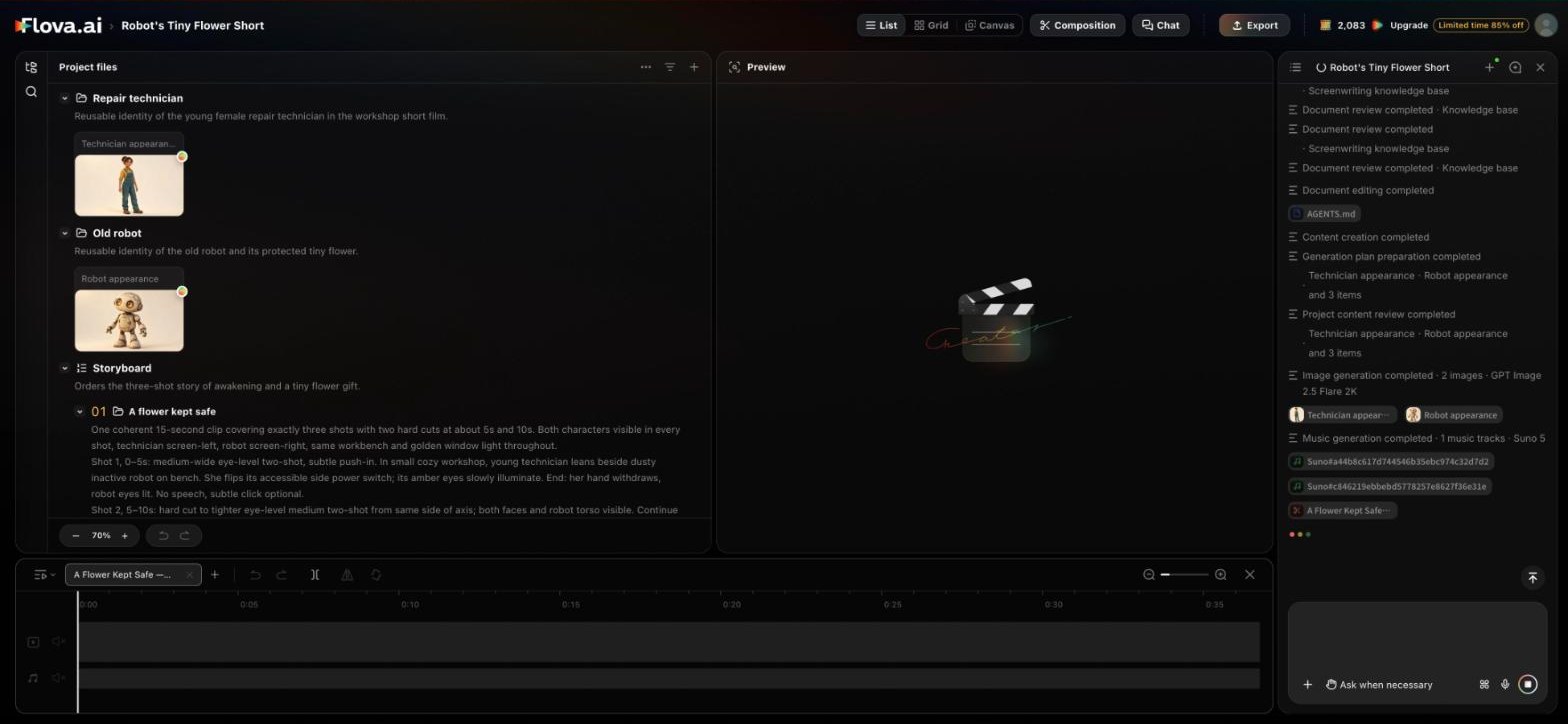
The result held together well. The technician’s hair and overalls and the robot’s dust marks and eyes stay the same from shot to shot, and the flower handoff is clean. This was the strongest part of the test.

Here is the finished 15-second film, exactly as Flova exported it:
A few details are worth knowing. The workshop background varies a little between shots, and the second shot favors the robot’s face over the technician’s. The film is one continuous clip with two hard cuts, which is useful to know if you plan to re-edit shots by hand. The agent also flagged a detail on its own, which we liked: “the robot looks mainly toward the technician rather than clearly scanning the workshop.”
Revising One Shot
We then asked the agent to change only the middle shot, so the robot would turn its head left and right. It cut out the 4-second section and regenerated just that piece.
After about 13 minutes, it told us the new shot did not yet show a clear head turn, so it kept the original film intact and offered another attempt. Its explanation was clear: “Generative edits can miss requested movements even with explicit instructions.”
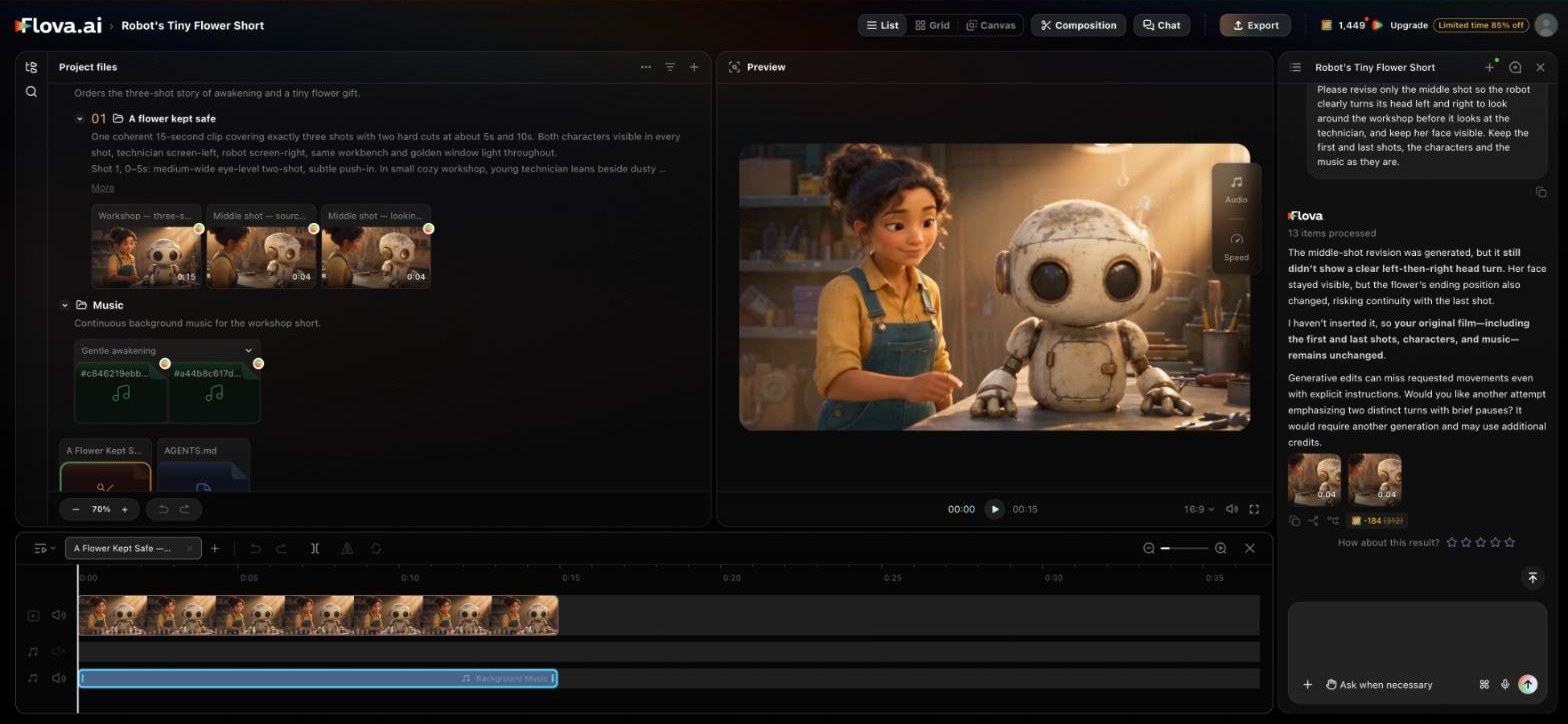
We liked that the agent checked its own work instead of quietly changing a finished film. The attempt used 184 credits, so if your project depends on a precise action, the Generator below is the better place to try it.
Flova Skills: Reusable Workflows
Flova Skills are saved workflows that the agent follows. The library has filters such as Drama, Commercial, Anime & Game, Music / MV and Product Showcase. Each card shows the author, the number of users and the models involved. Opening a Skill shows its readable instructions, with options to copy it, share it, set it as a default or use it.
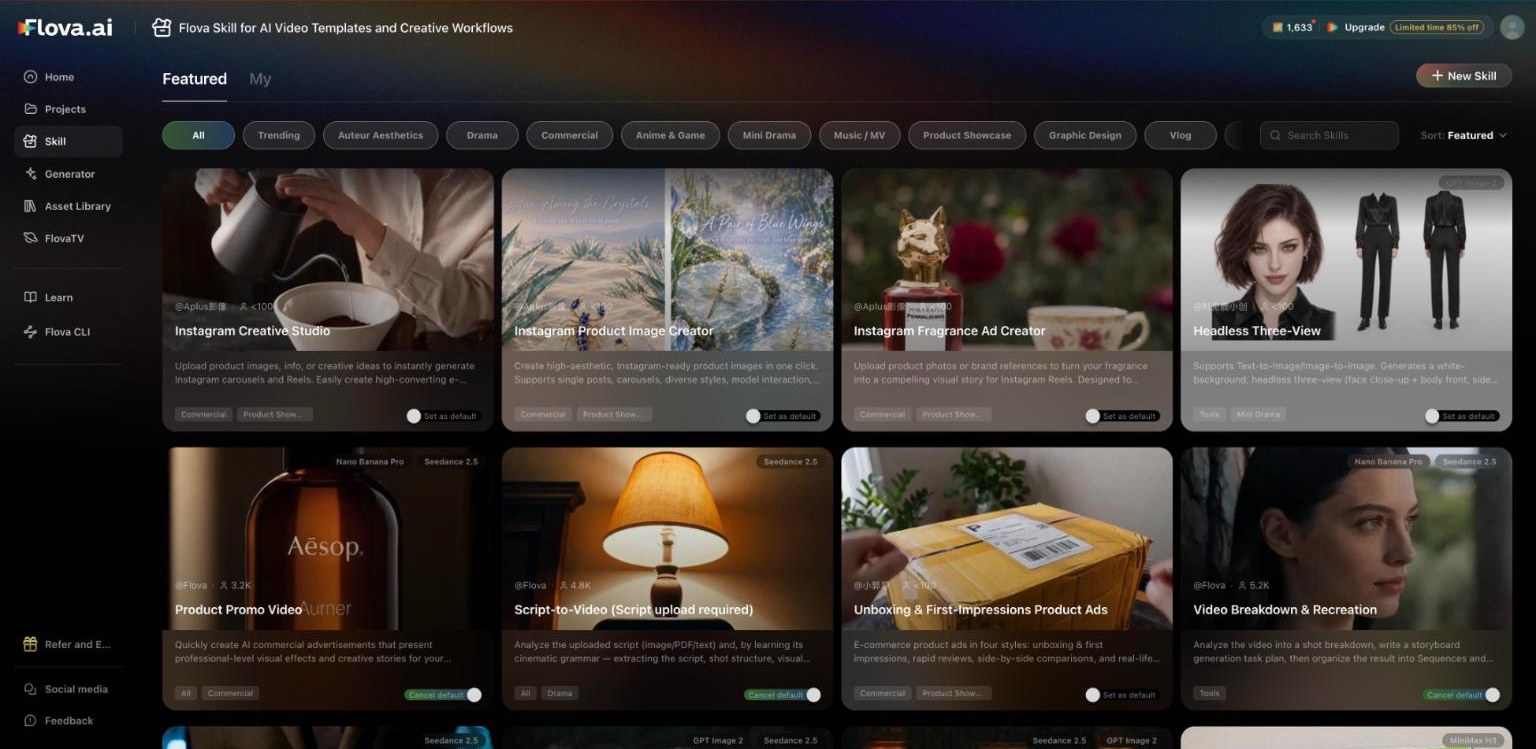
We tried Headless Three-View, a community Skill with fewer than 100 users, to make a character sheet for a bicycle courier. The first run stopped on a sync error, and asking again produced the sheet in about two minutes for just 6 credits.
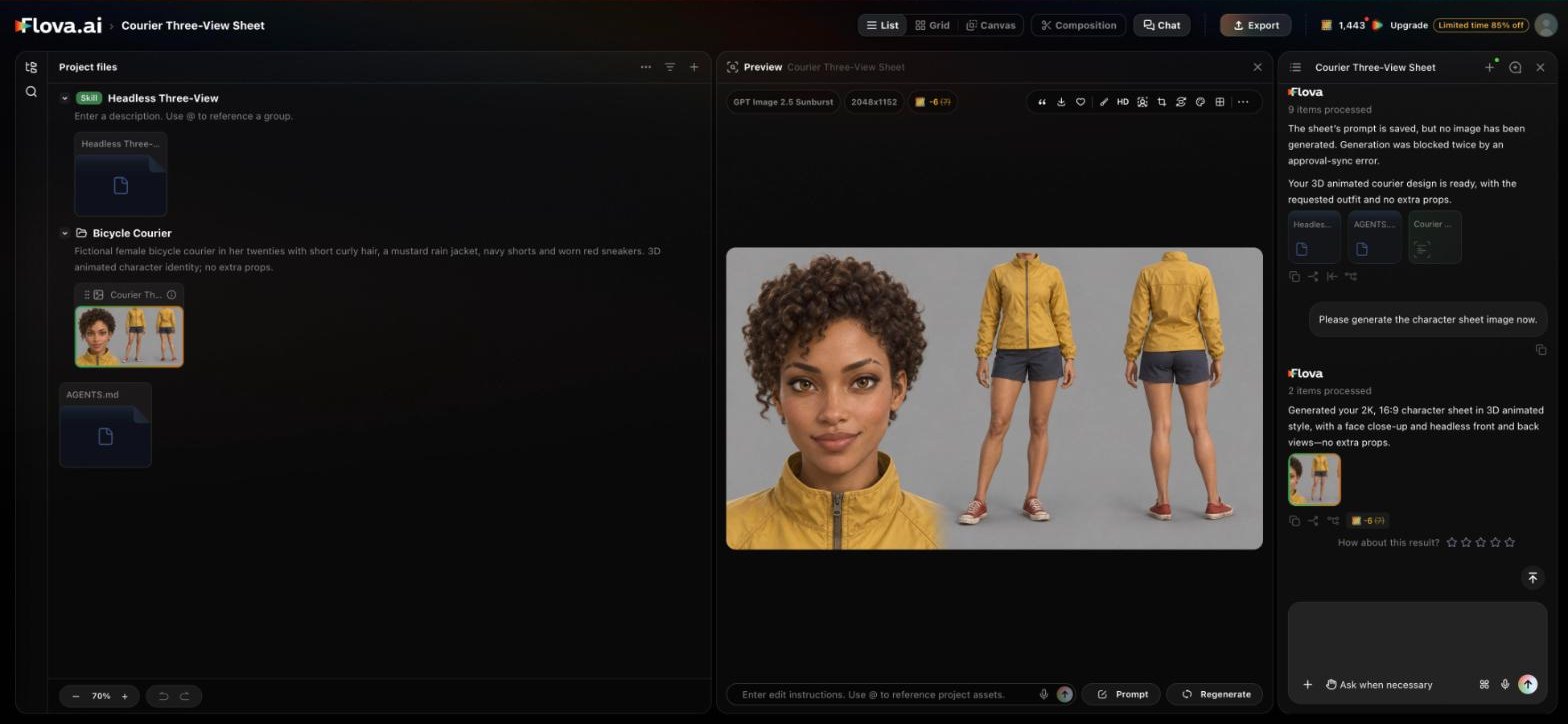
The outfit matched our description, and the sheet gave us a face close-up with front and back views. The style came out more realistic than the 3D animated look we asked for, and the preview offers edit instructions and Regenerate for further changes. This was one small community Skill, so treat it as a single sample. Flova’s own Skills, such as Script-to-Video and Video Breakdown & Recreation, show thousands of users, and we did not run those directly.
Generator and Export
The Generator is the manual route for people who already know which model and settings they want. It has tabs for video, image, music and audio, room for up to 50 references, and controls for model, resolution, length and aspect ratio. Video modes include Omni Reference, Smart Edit, Extend Video, Image to Video, First/Last Frame to Video and Lip-Sync Avatar.
Omni Reference lets you combine text with image, audio and video references. We gave it one frame from our film and asked for the head movement the agent had missed: the robot turns left, pauses, turns right, then looks back at the technician. The cost, 150 credits for 5 seconds of Seedance 2.5 at 720p, showed beside the Generate button before we ran it.

In under eight minutes we had a 1280×720 clip in which the robot clearly looks from side to side, with both characters matching the reference. It is the result we had wanted from the revision, on the first try.

Export was the smoothest step. The watermark-free export of our film took under a minute and cost no credits. We got a 1920×1080, 30 fps, 15-second MP4 of 16.4 MB, with no watermark in the frames we checked. Flova says a 720p clip exported this way is resized to fit the 1080p canvas, which does not by itself mean AI upscaling or native 1080p detail. Flova’s documentation also lists a CapCut draft export for further editing and a project files package, which it says is not a project backup.
Flova CLI: Running Flova From an Agent
The Flova CLI lets a coding agent that can run local commands drive Flova from the terminal. Installation took one script, and signing in meant approving the session on a single browser page. The same account, credits and projects appeared straight away, and flova model list showed 34 models: 20 video, 9 image, 3 audio and 2 music.
We created a project and asked for one image only, with no video or audio. The run finished in 83 seconds for 6 credits, followed the “image only” limit, and returned a 2048×1152 image in a warm 3D style. Because the CLI connects to the full project system, the work also stays available in the web app.

This route is for people already working with coding agents, since it needs an agent environment with terminal access. Flova’s documentation also describes an MCP connection, which we did not test.
Flova AI Pricing
These are personal plans on annual billing, read on 6 November 2026 during a launch offer with a countdown, so check the live pricing page before buying.
Plan | Launch price per month | List price per month | Credits per month |
|---|---|---|---|
Starter | $17 | $20 | 2,000 |
Basic | $42 | $50 | 5,000 |
Plus | $84 | $100 | 10,000 |
Pro | $167 | $200 | 20,000 |
Source: Flova pricing page, read 6 November 2026
At our account’s rate, Starter’s 2,000 credits would cover about four films like ours, with a little room for extra attempts. Rates depend on the model, settings and plan. Flova lists Seedance 2.5 at 720p with a video reference from $0.167 per second on Starter down to $0.025 on Pro, so heavy users get far more from the higher plans.
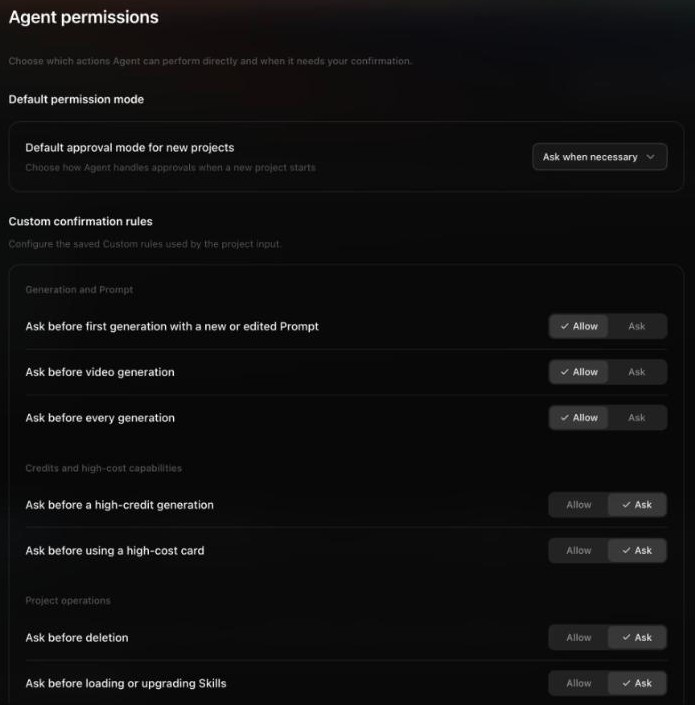
You can also control when credits get spent. Under Settings, Agent permissions, new projects can use Run directly, Ask when necessary, Ask before generation or Custom rules, such as asking before every video generation or high-credit run. Our film ran straight through in Ask when necessary, so choose Ask before generation if you want to approve each run first.
Subscription credits last 30 days and plans renew automatically. Flova offers a full refund within 7 days of payment if you have not run any generation. Credit rules can change, so check the pricing page for current terms. Among personal plans, realistic-style generation is listed under Plus and Pro.
Flova AI Strengths and Things to Keep in Mind
Strengths
- Turns one short brief into a finished, edited film without a question.
- Keeps characters consistent across shots.
- Reports its own misses in plain language.
- Skills are readable and reusable, and you can copy and share them.
- Fast export that used no credits in our test.
- The CLI brings projects, Skills and export to coding agents.
- The Generator shows the credit cost before you run it, and permission settings can ask you first.
Keep in Mind
- The Agent can sometimes miss very specific motion details when interpreting them in the context of a larger project.
- Attempts you don’t keep still use credits.
- Revising a single shot can take as long as a first draft.
Who should use Flova AI?
Flova suits creators and small marketing teams who want a polished first version quickly, with consistent characters and a finished edit in one project.
If your script depends on one exact action in one exact shot, start with the Starter plan, test your hardest shot in the Generator with Omni Reference, and turn on Ask before generation while you learn what each run costs.

Leave a comment
Have something to say about this article? Add your comment and start the discussion.