



On our test iMac, 384 video files held 90.5 GB, far more than the 47.6 GB free on the whole drive. Knowing how to free up disk space on Mac mostly means finding files like those first, then using Apple’s built-in tools in a sensible order. These steps follow Apple Support’s article, Free up storage space on Mac, and its Mac User Guide for macOS 27, with step 7 from Apple’s Photos User Guide.
Apple Support says the Storage path applies in macOS Ventura 13 or later. Work from step 1 down, in this order: find what uses space, delete only what you recognize, and empty the Trash last, since that is when the space comes back.
Before you start: Back up anything you might want later. Apple’s warning is plain, and the section after step 8 repeats it: Items emptied from the Trash are gone for good.
Key Takeaways
- According to Apple Support, Empty Trash automatically removes files after more than 30 days in the Trash.
- According to Apple’s Mac User Guide, the Documents category lists large files and lets you sort them by Size.
- According to Apple’s guide, File Browser shows the storage used by various folders.
- According to Apple Support, macOS clears caches and logs that are safe to delete when space is needed.
- According to Apple’s Photos User Guide, merged duplicates stay in Recently Deleted, recoverable within 30 days.
What Filled Our Test Mac
Before writing these steps, we measured where the space sat on one Apple silicon iMac and deleted nothing. Its Downloads folder took 123 GB, and the Mac held 90.5 GB of video there against 9.7 GB of caches. Your numbers will differ, but the chart shows why you should measure before you delete.
View the data
Step 1: Check Storage Settings First
In macOS Ventura 13 or later, Apple’s path is System Settings, General, then Storage. This shows which categories use the most space, which tells you where to spend your time. These 3 actions get you there:
- Choose System Settings from the Apple menu.
- Click General in the sidebar, then click Storage.
- Go to a large category that has an Info button and click it.
Apple describes System Data, also called Other, as a general category for Apple and third-party files that fit no more specific category. That makes it a poor place to start deleting by hand.
Note your free space before you change anything, so you can see what each step returns. Our drive had 47.6 GB free out of 494 GB, or about 10%.
Step 2: Turn On Apple’s Storage Options
Apple’s Storage settings include Store in iCloud, Optimize Storage and Empty Trash automatically. These run without further work once they are set, so consider these 3 before deleting anything by hand.
- Store in iCloud keeps only recent files in their entirety on the Mac.
- Optimize Storage removes movies and TV shows you have already viewed.
- Empty Trash automatically removes files after more than 30 days in the Trash.
Step 3: Find Large Files on Mac
Apple’s Documents category has a large files view you can sort by Name, Kind, Last Accessed or Size. That answers how to find large files on Mac with no extra software, in these 3 actions:
- Go to the Documents category and click its Info button.
- Click the large files button, then click Size near the top of the dialog.
- Select an unneeded file, then click Delete, or click Show in Finder to view it.
In a Finder window in List view, clicking a column name sorts by that column, and clicking it again reverses the order. That helps when you already suspect a certain folder. A size sort pays off quickly. The 10 largest files in our Downloads folder held 15.1 GB.
Step 4: Show Folder Size on Mac
Apple’s File Browser, in the same Documents category, shows the contents and storage used by various folders. This is a built-in disk usage view on a Mac, and these 2 actions use it:
- In the Documents category, click File Browser.
- Open the folder using the most space, and repeat until you reach files you recognize.
For details on one item, select it and choose File, then Get Info, or press Command-I, which opens an information window.
Step 5: Clear Downloads, Mail and Unused Apps
Apple lists the Downloads folder as a place to delete files, opened from the Dock, the Finder sidebar or Go, then Downloads. Installers can collect here, and you may not need a Mac disk image once its app is in Applications.
Check for video and old files before you hunt for installers. Ours held no disk images, and archives took only 1.9 GB. Video took 73% of the folder, and 87.7 GB of that video had not changed in over a year. A big folder may also hold active work, so review it rather than clearing it.
Apple’s list continues with these 4 actions:
- Delete what you recognize in that folder, starting with old videos you can replace or have backed up.
- In Mail, choose Mailbox, then Erase Junk Mail, then Mailbox, then Erase Deleted Items.
- Delete old iPhone or iPad backups you no longer need.
- Delete or uninstall apps you no longer use.
Apple also suggests moving files to another storage device, such as an external drive, which keeps what you cannot delete.
Step 6: Leave Caches to macOS
Apple says macOS clears caches and logs that are safe to delete when space is needed, including interrupted downloads and Safari website data. So you can skip digging through Library folders by hand. Third-party cleaners such as these CCleaner alternatives are optional here. Our measurement supports skipping this. Caches were 9.7 GB, about 8% of what our Downloads folder held.
For one task, such as a macOS update, Apple says safe mode clears certain system caches. Those caches are created again as needed, so the gain is temporary.
Step 7: Find Duplicate Files on Mac
Apple’s Photos app gathers duplicate photos and videos in a Duplicates collection under Utilities. Deleted duplicates stay recoverable for a while, so it is a low-risk place to start, and these 3 actions do it:
- In the Photos app, click Duplicates below Utilities in the sidebar.
- Select the duplicates you want to merge.
- Click Merge, then confirm in the dialog.
Apple says one original stays in place, and deleted duplicates go to Recently Deleted for 30 days. Treat other duplicate files with more care: two files with similar names can have different contents, so open both before you delete one.
Step 8: Empty the Trash
Apple says that when you move a file to the Trash, its storage space doesn’t become available until you empty the Trash. This step returns the space, so do it last. In the Dock, click the Trash icon, review the items, then click the Empty button. Look at its size before you empty it, since this step only helps after you delete something. Ours held 0 GB at the start.
How to Free Up Disk Space on Mac Without Losing Files
Apple warns that any items emptied from the Trash are permanently deleted and are no longer available. That warning is the reason to slow down before the last click. Check each file before it goes, and keep a copy of anything you cannot identify. If you do delete the wrong file, these data recovery basics explain your options.
Do not delete blindly: Never remove a file only because it is large or sits in a folder you do not recognize. If you cannot say what it does, leave it, or copy it to an external drive before you touch it.
Use a Disk Usage App for a Closer Look
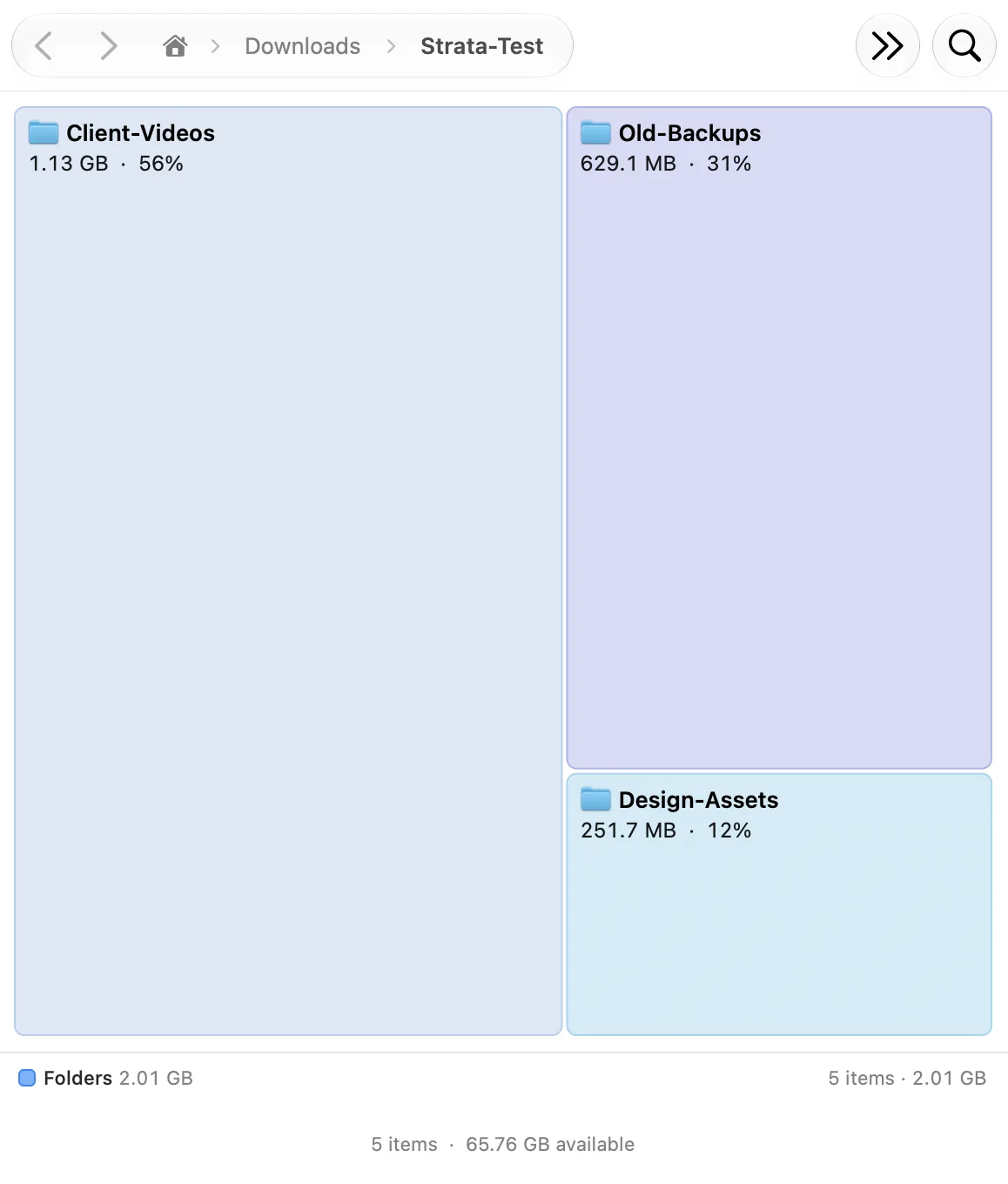
Strata Files is free, and it is an open source file manager and Finder alternative for macOS. It has a Disk Usage map plus Large Files and Duplicates lists. In our test of version 0.7.5 on an Apple silicon iMac, Duplicates reported 201 sets and 2.59 GB to reclaim. Many sets were developer runtime files, so treat that total as an upper bound and review before deleting. It needs an Apple silicon Mac running macOS 26, and we ran it on macOS 27.0.1, where it used about 590 MB of memory at 11 minutes.
Its Disk Usage map draws each folder as a tile sized by the space it uses, so the folders using the most space stand out. The screenshot below shows a dummy test folder, not our real files.
Its Duplicates list, shown next, matched a dummy backup with a renamed copy, so it compares file contents as well as names.

Why is my Mac storage full after deleting files?
Apple says that when you move a file to the Trash, its storage space doesn’t become available until you empty the Trash, so check that first. Open the Trash, empty it, and then look at the figures in Storage settings again.
System Data measures Apple and third-party files that don’t belong to any more specific category, so it can also look large.
Conclusion
Work through Storage settings, then large files and folder sizes, then Downloads and duplicates, and finish with the Trash. On our iMac, old video outweighed caches, so measure your own Mac before you decide what to remove. Turning on the 30 days Trash option keeps the problem smaller next time.
Keep Apple’s warning in mind at every step: an emptied file is gone. When you are unsure what a file does, leave it in place.

Leave a comment
Have something to say about this article? Add your comment and start the discussion.