

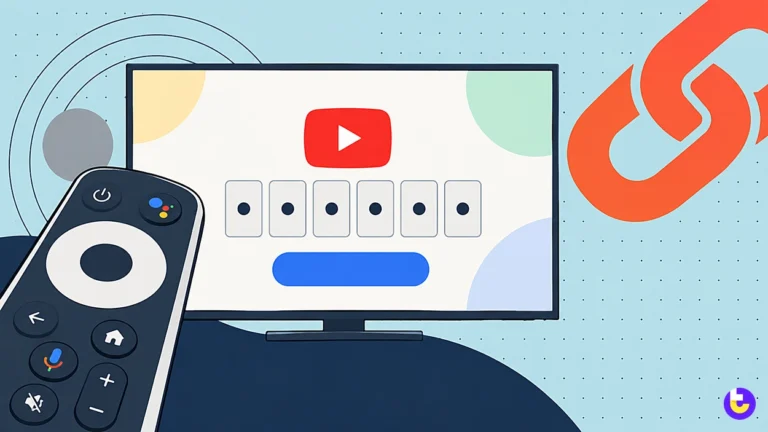


The youtube.com/activate address opens a Google sign-in form headed Connect a device, and its single field says Enter the code displayed on your device. That code comes from the YouTube app on your TV or console. Google’s own help page now points to the short address yt.be/activate, which opens the same Connect a device form. The steps below come from the help pages of Google, Sony and the Kodi add-on’s developers, checked in September 2026.
No phone nearby? YouTube offers a second route: use your remote and the on-screen keyboard to enter your Google Account information. The sections that follow cover Google TV, Samsung, LG, Roku, Fire TV, Apple TV, Xbox, PlayStation, Nintendo Switch and Kodi in turn, then the fixes for a code that will not go through and the way to sign a TV out from your phone.
Key Takeaways
- YouTube’s TV app offers 2 ways to sign in: scan the QR code, or go to yt.be/activate on your phone, tablet, or computer, then enter the code on the screen, or type your account details with the remote.
- The IETF standard behind the code is RFC 8628, dated August 2019, which covers devices like smart TVs, media consoles, digital picture frames, and printers.
- If sign-in fails, Google says to power cycle your device by unplugging it, leaving it unplugged for 30 seconds, then plugging it in again.
- The maximum resolution for the original Xbox One console is 1080p, and in handheld mode, the Nintendo Switch built-in display has a maximum resolution of 720p.
- Linking your Google Account to your PlayStation account will not sign you in to YouTube, so a PS5 owner still needs to sign in inside the YouTube app. Unlinking sits 3 menus deep in PS5 Settings.
What Is youtube.com/activate?
Google documents the OAuth 2.0 flow for applications on devices with limited input capabilities, such as TVs or game consoles, and youtube.com/activate is where that flow meets you. The TV shows a code, you approve it on a phone or computer, and the TV is signed in without you typing a password on the remote.
The pattern is an internet standard, not a YouTube invention. The OAuth 2.0 device authorization grant is designed for Internet- connected devices that either lack a browser to perform a user-agent- based authorization or are input constrained, according to the IETF’s RFC 8628, dated August 2019. The authorization process involves the device requesting codes, displaying information to the user, the user authorizing on a separate device with richer input, and the requesting device polling for tokens.
Why your password never touches the TV: This OAuth 2.0 flow allows applications to access Google APIs on behalf of a user without needing their username and password. That is the practical reason to prefer the code route on a shared or hotel TV.
Is yt.be/activate the same as youtube.com/activate?
Yes. Both addresses open a form titled Connect a device. Google’s sign-in help page tells you to go to yt.be/activate on your phone, tablet, or computer, then enter the code on the screen, while its Xbox Series X|S page says to go to www.youtube.com/activate and enter in the activation code. Type whichever address your TV screen shows.
Where do I enter a YouTube TV activation code?
YouTube TV, the paid live TV service, uses its own address. Open the YouTube TV app on your smart TV or game console, then scan the QR code, or go to tv.youtube.com/start on your phone, tablet, or computer. Enter the activation code shown on your TV and tap Continue, select the account associated with your YouTube TV Base Plan, then select Allow.
How to Activate YouTube on a TV With a Code
Google’s YouTube Help gives a choice once you open the YouTube app on your smart TV or game console: sign in with your phone, or sign in with your remote.
The phone route is the youtube.com/activate code, and it works the same way on most devices in this guide; the Switch and Kodi sections below note the differences. It takes 5 steps.
- Open the YouTube app on your smart TV or game console and choose to sign in.
- Scan the QR code, or go to yt.be/activate on your phone, tablet, or computer.
- Sign in to your Google Account on the phone or computer if it asks.
- Enter the code displayed on your device, then select Continue.
- Approve the request on the next screen. On Xbox, the button reads Allow Access, which completes the sign in process.
If one of these options isn’t working for you, try the other one. For example, if signing in with your phone doesn’t work, try signing in with your remote.
The table maps each device to where the code appears and where you type it.
Device | Where you get the app | Where the code appears | Where you enter it |
|---|---|---|---|
Google TV, Android TV | Google Play Store | YouTube app sign-in screen | yt.be/activate |
Samsung TV | Apps list | YouTube app sign-in screen | yt.be/activate |
LG TV | LG Content Store | YouTube app sign-in screen | yt.be/activate |
Roku | Streaming Store | YouTube app sign-in screen | yt.be/activate |
Fire TV | Fire TV home page search | YouTube app sign-in screen | yt.be/activate |
Apple TV | App Store | YouTube app sign-in screen | yt.be/activate |
Xbox Series X|S, Xbox One | Microsoft Store | Sign in & Settings, then SIGN IN | www.youtube.com/activate |
PlayStation 5 | Media, All Apps | YouTube app sign-in screen | yt.be/activate |
Kodi | Install from repository | Connect a device prompt | Connect a device page |
Source: YouTube Help, PlayStation Support, Kodi Wiki, 2026
How to Activate YouTube on Google TV, Samsung, LG, and Other Smart TVs
Google says the YouTube app is already available on most smart TVs, game consoles, and streaming devices, so on a Google TV, Samsung or LG set the first step is usually opening the app you already have.
If it is missing, install it from the TV’s own store, then run the code steps above. Each store route below takes 3 steps.
Google TV and Android TV
- Open the Google Play Store on your TV.
- Search for YouTube and download the app.
- Open YouTube and follow the sign-in steps above.
Google TV also lets each person keep a profile. You can add more than one user profile on your Google TV and sign in to Google services with multiple accounts. From the Google TV home screen, go to your profile picture or initial, select your name, then + Add account, and scan the QR code with your phone.
Samsung TVs
- Select the home button on your device’s remote control.
- Open Apps to see a list of recommended apps, and find YouTube.
- Add the shortcut to your home screen, then open YouTube to get a sign-in code.
LG TVs
- Go to the LG Content Store from the home button.
- In the LG Content Store, search for “YouTube” and download the YouTube app.
- Open YouTube and sign in with the code.
How to Activate YouTube on Roku, Fire TV, and Apple TV
Roku, Amazon and Apple streaming devices install YouTube from their own stores. After that, Google’s sign-in steps apply unchanged: scan the QR code, or go to yt.be/activate on your phone, tablet, or computer, then enter the code on the screen. Only the store name changes. Roku adds 1 extra confirmation screen, covered below.
Roku
- From the home screen, select Streaming Store or Streaming Channels.
- Select Search and search for YouTube.
- Download the app. If it downloads successfully, you’ll get a message on your TV screen saying “Channel added.”.
- Open YouTube on the Roku and type its code at yt.be/activate.
Fire TV
- On the Fire TV home page, search for “YouTube.”.
- Download the app, open it, and finish on your phone.
Apple TV
- On your Apple TV, open the App Store app from your Home screen.
- Search for YouTube and download the app.
- Open YouTube and sign in with the code.
How to Activate YouTube on Xbox Series X|S and Xbox One
Google’s Xbox help pages spell out the code sequence menu by menu and name the web address as www.youtube.com/activate. When you first open the YouTube app, you can sign in with your Google Account, which unlocks your playlists and subscriptions.
- Open the Microsoft Store on your Xbox device, search for YouTube and install it.
- On your Xbox Series X|S, navigate to Sign in & Settings.
- Select SIGN IN. You’ll get an activation code.
- On your computer, go to www.youtube.com/activate and enter in the activation code shown on the Xbox Series S or X.
- Click Allow Access, which completes the sign in process.
Signing in does not change what the console can play: the maximum resolution for the original Xbox One console is 1080p, and the Switch sits lower in handheld mode.
How to Activate YouTube on PS5, PS4, and Nintendo Switch
Sony’s PlayStation consoles run the same YouTube app and the same code sign-in, but linking your Google Account to your PlayStation account will not sign you in to YouTube. You’ll still need to sign in to the YouTube app.
That makes 2 separate jobs on a PlayStation: linking for broadcasting, and signing in for watching.
PlayStation 5
- From Games home, select Media, All Apps and then select YouTube.
- Select Download.
- Open YouTube and enter its code at yt.be/activate.
PlayStation 4
- Open the PlayStation Store on your Playstation device.
- Search for YouTube and select it from the apps section of the results.
- Select Download. Sign-in then works exactly as on the PS5.
Unlinking is not signing out: Google says you can link your Google and PlayStation accounts to broadcast and share gameplay from your console to YouTube. To remove that link on a PS5, go to Settings > Users and Accounts > Link with Other Services, then select YouTube and Unlink Account. Sign out inside the YouTube app as well if you are leaving the console.
Nintendo Switch
Google’s Switch help describes signing in on the console itself, with no code step. Go to Sign in, then sign in with your Google Account. If you have more than one Google Account, be sure to select the account you use with YouTube. When opening the app, you’ll be asked to select a Nintendo account to use, and any Nintendo account works.
How to Sign In to the YouTube Add-on in Kodi
Kodi’s YouTube add-on uses the same Connect a device page, but the add-on’s own documentation says it asks for it more than once. For the look of Kodi itself, see the guide to Kodi skins.
During the add-on sign in process you will be asked to Connect a device as many as three times, and one of those screens carries a Google warning. Keep your phone at hand for up to 3 approvals.
- Install the add-on from Settings, Add-ons, Install from repository, Video Add-ons, YouTube, Install.
- Create your own API key, OAuth2 client ID and client secret, following the Personal API Keys page on the add-on’s GitHub wiki.
- Enter them in the add-on under Settings > API > API Key, API Id and API Secret.
- Choose sign in, then enter each code Kodi shows at the Connect a device page.
The unverified app screen: The second time you Connect a device, you will be prompted with: This app isn’t verified. This app hasn’t been verified by Google yet. Only proceed if you know and trust the developer. The warning appears because the add-on signs in with keys you created yourself rather than a reviewed app; continue only if you made those keys.
YouTube Activation Code Not Working? Try These Fixes
Google’s YouTube Help starts with the network and lists the checks in order. Verify that your smart TV is on the same WiFi network as your phone, then make sure that your phone is not connected to mobile data instead of WiFi.
- If you’re using an activation code, make sure you typed in the correct code at yt.be/activate.
- Power cycle your device by unplugging it, leaving it unplugged for 30 seconds, then plugging it in again.
- Reboot your router, then reboot your phone or tablet.
- Switch methods. If signing in with your phone doesn’t work, try signing in with your remote.
Two details from Google’s developer documentation explain why a code that looks right gets rejected. The user_code is a case-sensitive value, so type the letters exactly as the TV shows them. The expires_in field sets the length of time, in seconds, that the device_code and user_code are valid, and a code left too long stops working.
Get a fresh code: Google’s YouTube TV help says that if you get stuck at this step, your activation code may have expired, and to try hitting back and reloading the page to refresh the activation code displayed on your TV. The same reset works in the regular YouTube app: back out of sign-in and start it again for a new code.
One device cannot use the code at all. Signing in directly to YouTube on older Chromecast devices is not supported, so you control playback from the phone that is signed in. If the app signs in but the player stays dark, the YouTube black screen fixes cover the next step. A weak home connection makes every step here slower, and the guide to increasing internet speed covers the router side.
How to Switch Accounts or Sign Out of YouTube on a TV
In the YouTube app on your smart TV or game console, you can sign in to different accounts and easily switch between them, and Google lets you sign a TV out even after you have left it. Google documents 2 sign-out routes: on the TV, or remotely from any device.
Guest mode lets others use YouTube on your TV or game console while signed out.
Add a second account or a guest
Open the YouTube app, select the left menu, then your profile picture to open the accounts page, and pick an account, add one or use guest mode. Any actions taken while signed out in guest mode won’t affect your account’s recommendations, which makes guest mode the right choice for visitors.
The numbers-only code in the TV’s settings is a different tool. When you add a device using a TV code, you can watch YouTube on your TV when you’re not on the same Wi-Fi. Scroll to Add a device in Settings and a blue TV code will show on your TV. This code will be numbers only.
It pairs your phone for casting and does not sign the TV in to your account.
Sign out on the TV
- Open the YouTube app on your TV and select the left menu.
- Select your profile picture to open the accounts page.
- Select your account from the list and click Sign out.
Sign out remotely from your phone
- Open https://myaccount.google.com/device-activity on any device.
- Select the device that you’d like to sign out of, then select Sign out.
You can also remove YouTube on TV access for a Google Account by opening https://myaccount.google.com/permissions, then select YouTube on TV and Remove Access. Removing access will sign you out of any device using the YouTube on TV app with that account, which clears a TV you sold or a rental you forgot, along with every other TV on that account. If a video you open afterward shows an error, the uploader-has-not-made-this-video-available fix covers one common error.
Do You Need to Pay to Activate YouTube on a TV?
No payment step appears in Google’s sign-in instructions for the regular app. The remote route asks you to use your remote and the on-screen keyboard to enter your Google Account information, and once the TV is signed in, the YouTube tips and tricks for the regular app apply there too.
YouTube TV is the exception. Its sign-in asks you to select the account associated with your YouTube TV Base Plan, so the account you approve must be associated with a YouTube TV Base Plan.
Conclusion
The code route ends on a Google page titled Connect a device, which asks you to Enter the code displayed on your device. Open the app, type the code at youtube.com/activate or yt.be/activate, and approve it; when that fails, check the Wi-Fi, power cycle the TV and fall back to the remote. Keep the device-activity page bookmarked, because signing a TV out from your phone matters as much as signing it in.
Kodi and PlayStation are two places where the obvious step is not the whole job: Kodi needs your own API keys and several approvals, and a linked PlayStation account still needs its own sign-in inside the app.

Gaurav
Great Insights. I must say you acquired amazing writing skills.
Frank
Thank you very much, you helped me a lot! ❤