


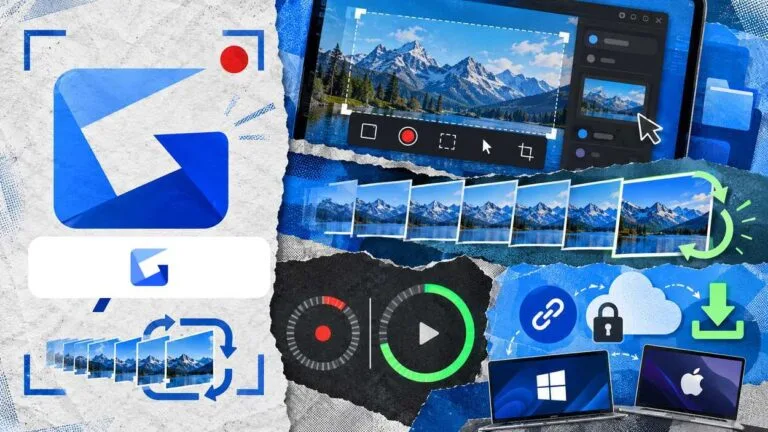


Gyazo’s free plan allows video recording up to 7 seconds, while Gyazo Pro allows video recording up to 10 minutes, according to Gyazo’s pricing page. That gap decides how you use Gyazo GIF today. With Gyazo Video you can record a screen video with sound and HD quality or a screen GIF and upload it instantly, so one recorder, Gyazo Video, handles both video and GIF.
From the share menu on the image page, you choose MP4 by clicking Video or GIF by clicking GIF, and the download starts automatically. Every Gyazo step, hotkey and limit below comes from Gyazo’s own help center and pricing page as of October 2026, and the 2018 Windows 7 instructions this page once carried no longer apply. If you only need a still image, the same app takes screenshots too.
Key Takeaways
- Free accounts record video up to 7 seconds; Gyazo Pro records up to 10 minutes.
- On Windows, Gyazo Video starts with Ctrl + Shift + G by default, and Gyazo Replay captures 1080p HD clips with Ctrl+Shift+F.
- Gyazo Pro users on Windows can fix the recording time anywhere between 1 and 600 seconds.
- Gyazo Replay saves the last 30 seconds for Pro users or 7 seconds for free users, on Windows only.
- Free users can open only the 10 most recent uploads from the Captures page, but older images stay reachable from their URL.
- Support responds within 2 business days on the Pro plan, versus within 5 business days on the free plan.
What is Gyazo GIF?
Gyazo Video records a screen video with sound in HD quality, or a screen GIF, and uploads it instantly. GIF is a download format you pick from the share menu on the image page, next to MP4, and Gyazo’s help center covers GIF recording on its Gyazo Video page.
Gyazo sets a maximum file size for GIFs so they load on most devices, and reduces the detail automatically to fit that limit. For long and high resolution clips, Gyazo recommends the video format, because a short MP4 loads faster and plays reliably on more devices. In practice, record once and decide the format at download time: GIF for a short loop in a chat or bug report, MP4 for anything longer.
How to Download and Install Gyazo on Windows, Mac, and Mobile
Gyazo supports Windows 11 and 10, macOS 11.0 (Big Sur) or later, iOS and Android OS for its application. The free plan includes apps for Windows, Mac, iOS, and Android plus a browser extension, with video recording up to 7 seconds, so the download costs nothing on any of them.
Before you start: On a Mac, Gyazo needs you to give permission for several access types before it works. Grant the access macOS asks for when prompted.
To install on Windows:
- On the Get Started page, click the Download Gyazo button.
- In your download folder, click the Gyazo.exe file to launch the installer, then click next and follow the install steps.
- You can add Gyazo icons to your task bar for quick access.
To install on a Mac:
- On the Get Started page, click the Download Gyazo button.
- In your download folder, click the Gyazo.pkg file to launch the installer, then follow the install steps.
- For quick access, drag and drop the Gyazo and Gyazo Video icons from your Applications folder to your dock.
The free iOS and Android apps take and upload new photos, images and screenshots you have already saved, and copy the link after upload just like the desktop apps.
Can the Gyazo extension for Chrome, Firefox, and Edge record GIFs?
No. Gyazo’s extension supports only still images, and Gyazo Video and Gyazo Replay are not supported in it at this time. The free extension is available for Google Chrome, Firefox and Microsoft Edge, installs from the Chrome webstore on Brave, and Gyazo has no Safari extension at this time. Chrome OS has no Gyazo application, but you can use the Chrome extension.
| Platform | What Gyazo supports there |
|---|---|
| Windows 11, 10 | Gyazo app with Gyazo Video and Gyazo Replay |
| macOS 11.0 (Big Sur) or later | Gyazo app with Gyazo Video |
| iOS and Android | Free mobile apps for photos and screenshots |
| Chrome, Firefox, Edge | Extension for still images only |
| Chrome OS | Chrome extension, no Gyazo application |
| Linux | Open-source client without Gyazo Video or Gyazo Replay |
Source: Gyazo Help, Supported OS and Web Browsers, Download and Install Gyazo, Gyazo Extension, October 2026
Gyazo has open-sourced Gyazo for Linux without technical support, and Gyazo Video and Gyazo Replay aren’t available on Linux at this time. Gyazo Replay is only for Windows, which is why the Mac row above lists Gyazo Video alone.
How to Record a GIF With Gyazo, Step by Step
Gyazo Video records a part or all of your screen, uploads it when you click the checkmark or hit the time limit, and copies a link to the new video; free video recording runs up to 7 seconds. Plan a short action before you start.
- On Windows, click the Gyazo Video icon on your desktop or taskbar, or press Ctrl + Shift + G; on a Mac, click the Gyazo Video icon in your dock or menu bar.
- Select your recording type, then select a part or all of your screen.
- Use buttons D, E and F to record system audio, the microphone and the webcam.
- Click the checkmark icon (button C) to upload; the upload also starts when the recording time limit is reached.
- After uploading, a link to your new video is copied, and by default a new browser tab opens to the uploaded video on gyazo.com.
On Windows, the control bar also has a button to cancel or close Gyazo Video, a button to start or pause recording, and a button that opens the Gyazo app Settings. When you record your webcam, you can drag the webcam picture to move it and drag its corner to resize it. For longer face-cam sessions, a dedicated recorder from our list of webcam recording software handles that job better than a 7-second clip.
How to Download a Gyazo Recording as a GIF or MP4
Videos captured with Gyazo Video and Gyazo Replay, including Replay clips up to 30 seconds, can be saved to your computer from the share menu on the image page, where Video saves MP4 and GIF saves a GIF. Downloading starts automatically once you pick one.
- Open the video page Gyazo opened after upload, or find the clip on your Captures page.
- Click the share button in the top navigation bar to see the sharing formats.
- Click GIF to save the capture as a GIF file, or Video to save it as MP4.
A long, high resolution capture can take a while to turn into a GIF, and the share menu shows several links to GIF files for different types of sharing. The same share menu shares directly to X (Twitter) and gives you an embed code.
Can you trim a Gyazo GIF before sharing it?
Yes, on a paid plan. Gyazo Pro and Gyazo Teams users can trim a video from the trim icon in the top navigation bar of the video page. Trimming works on a video, GIF, or replay clip, and the trimmed version is saved separately while your original video is not changed.
Gyazo GIF Shortcut and Hotkeys on Windows and Mac
Gyazo Video’s default hotkey on Windows is Ctrl + Shift + G, and you can change it in settings. Gyazo Replay uses Ctrl+Shift+F by default to capture instantly while you play. Both come from the Gyazo Video help page and its Replay counterpart.
| Gyazo tool | Default Windows hotkey |
|---|---|
| Gyazo Video (video or GIF) | Ctrl + Shift + G |
| Gyazo Replay | Ctrl+Shift+F |
Source: Gyazo Help, Gyazo Video and Gyazo Replay, October 2026
To change a hotkey on Windows, open GyStation (Gyazo Settings) and choose the Shortcut keys tab. You can set Gyazo’s shortcut keys on Windows to any combination of keys you like.
To change a hotkey on a Mac, click the Gyazo icon at the top of your screen to open the Gyazo Menu, open the settings, click Shortcuts, then click the key combination you wish to change. Some shortcut key combinations are not available, so try another pairing if one will not save.
How do I take a screenshot in Gyazo?
You launch Gyazo from its icon or your shortcut keys, click and drag to select an area, and release; Gyazo uploads the area and copies the capture URL to the clipboard. The Gyazo icon sits on the desktop or in the system tray on Windows, and in the menu bar or dock on a Mac. Windows also has its own built-in screenshot tools when you do not need an upload link.
Gyazo Recording Length Limits: Free vs Gyazo Pro
Gyazo’s pricing page caps free video recording and replay recording at up to 7 seconds each, while Gyazo Pro allows video recording up to 10 minutes and replay recording up to 30 seconds. Gyazo Pro users on Windows can set the recording time freely between 1 and 600 seconds (10 minutes), which Gyazo pitches for time-limited clips such as posts on X.
View the data
The recording time setting is available only for Gyazo Pro users and can be tried with a one-month free trial. Recording length is only one of the gaps between the plans, and the feature list below covers several more.
Feature | Free | Gyazo Pro |
|---|---|---|
Content access from Captures page | Up to 10 latest | Unlimited |
Access to browsing history | Not included | Up to 100 latest |
Background removal | Not included | 10 images per month |
Support response time | Within 5 business days | Within 2 business days |
Source: Gyazo Pricing and Plans, October 2026
Gyazo Pro adds OCR text search, image and video editing, password settings, image search, ad removal and export of all uploads to the free plan. Gyazo Pro also captures Gyazo Replay videos with sounds and no Gyazo watermark up to 30 seconds on Windows. If your GIFs are short UI demos under 7 seconds, the free plan covers the recording itself; Pro earns its place once you need longer clips, trimming or private captures.
Gyazo Replay: Capture the Last 30 Seconds on Windows
Gyazo Replay captures the last 30 seconds of on-screen action when you press Ctrl+Shift+F, then uploads the HD clip and copies the link while you keep playing. Replays are ready-to-share MP4 clips in 1080p HD, up to 30 seconds for Gyazo Pro users or 7 seconds for free users.
To be ready to capture, launch Gyazo Replay before you start playing your games or using your apps. Replay is optimized to use a modest amount of CPU and RAM, so most modern computers can still play games smoothly while it runs. Replay suits the moment you only notice after it happens; for full-session game capture, dedicated game recording software is the better fit.
Who Can See Your Gyazo GIFs? Privacy and Storage
On Gyazo, each capture defaults to Anyone with the link, which lets anyone who knows the link view it, and users on a Pro or Teams plan can change it to Password protected or Only me on the image page. Only you can see your image if you don’t share the link.
Links are public by default: Anyone who has the link can access the image page and see the image directly. Before you paste a GIF of a dashboard, inbox or terminal into a public channel, switch it to Only me on Gyazo Pro or Teams, or delete it afterward.
Can other people see your Gyazo screenshots?
Other people can see a Gyazo capture only if they have its link, because only you can see your image if you don’t share the link. Setting a capture to Only me blocks other people from viewing it even if they know the link. On a Pro or Teams plan, you can select several images on the captures page and click Visible to only me to change them at once.
How long does Gyazo keep images?
Gyazo says all images will be stored for the foreseeable future, and unless you delete a capture from the Captures page it should always be saved. Gyazo may delete a capture after an image delete request if it infringes its Terms of Service or to comply with legal requirements.
Where does Gyazo save images?
Gyazo stores captures on Google Cloud Storage, and you can always access an image if you know its URL. Free users can open only the 10 most recently uploaded images from the Captures page, but images from a free account won’t be deleted or become inaccessible from the URL. To remove a capture, click the trash can icon on its image page or select it on the Captures page, and to delete all captures at once you must delete your account.
Gyazo Alternatives for GIFs and Screen Recording
ShareX is a free and open source screenshot tool for Windows with screen capture, screen recording, file sharing and easy GIF recording, which makes it the closest free swap for Gyazo GIF on a PC. Each tool below is described from its maker’s own page, and the screen capture and recording software roundup covers more options.
| Tool | What its maker documents |
|---|---|
| ShareX | Free, open source Windows tool with Screen recording (GIF) |
| CleanShot | Mac screen recording with MP4 or GIF export |
| Camtasia Snagit | Windows and macOS screen capture and recording, GIF among supported formats |
| Loom | Starter at $0 with 25 videos and 5 minute recordings; Business at $18 per user per month |
| Snipping Tool | Windows video snip with Windows logo key + Shift + R |
| Mac Screenshot app | Screen recording opened with Shift, Command, and 5 |
Source: ShareX, CleanShot, TechSmith, Loom, Microsoft Support, Apple Support, October 2026
CleanShot records your screen on a Mac and exports crisp videos or quick GIFs. Camtasia Snagit works on both Windows and macOS to capture screenshots and record your screen, and lists GIF among its image formats. Loom’s Starter plan costs $0 with 25 videos and 5 minute screen recordings, and its video editing line lists GIF thumbnails.
The built-in tools record video and cost nothing:
- Snipping Tool on Windows records a video snip when you press Windows logo key + Shift + R, select an area and select Start.
- On a Mac, Shift, Command, and 5 opens the Screenshot app with controls to record the entire screen, a selected window or a selected portion.
Is Gyazo safe to use?
Every capture defaults to Anyone with the link, with Password protected and Only me as the other settings, so Gyazo is as private as the links you share. Gyazo warns that on an unsupported OS or browser you may run the app without security patches for vulnerabilities fixed in newer system versions, so keep Windows or macOS current.
Conclusion
Gyazo Video recordings run up to 7 seconds free and up to 10 minutes on Gyazo Pro, and the GIF itself is a download choice from the share menu once Gyazo Video uploads. Free users get a quick, link-ready loop for chats and bug reports; anyone recording walkthroughs, game moments past 7 seconds or private screens is the Gyazo Pro buyer.
On Windows, learn the Ctrl + Shift + G hotkey. On Gyazo Pro, set captures to Only me when the screen holds anything personal; on the free plan, delete them after sharing. Switch to MP4 for long clips, as Gyazo itself advises. If Gyazo’s limits do not fit, ShareX on Windows and CleanShot on a Mac both export GIF natively.

Gaurav Kumar
Hi Riddi,
Since Facebook has started accepting .gif uploads, people are more into sharing gifs. It is good to know about Gyazo as I was not aware of that.