


Windows 10 ships with a built-in dark mode, and third-party dark themes go further by restyling window frames, the taskbar and File Explorer. Every theme below is a free download.
Know this before you start: Windows 10 reached end of support on October 14, 2025. Microsoft no longer ships security fixes or technical assistance for it, and Extended Security Updates are now the only supported route to keep receiving patches. The themes still work. You are just styling an operating system that is no longer being repaired.
Current as of September 2026. Ten dark themes follow, starting with the official one that needs no download, then nine third-party visual styles, and finally the manual route for apps and browsers.
Before You Install a Third-Party Theme
The official dark mode is a settings toggle and carries no risk. The nine third-party visual styles are different: Windows only loads themes signed by Microsoft, so each one needs a patcher such as UxStyle or UltraUXThemePatcher to lift that restriction. That is a change to system files, not a wallpaper.
- Create a restore point first. Press Start, type Create a restore point, open System Protection, and click Create. This is the one step worth not skipping.
- Match the theme to your build. Visual styles are written against a specific Windows 10 release, and one built for 1909 can break the shell on a later build.
- Remember that Windows 10 is out of support. A future update will not quietly repair a bad patch, because there are no more feature updates. ESU covers security fixes, not theme breakage.
- If the shell breaks, boot into Safe Mode, switch back to the default Windows theme, then uninstall the patcher.
#1 The Official Windows 10 Dark Theme
We previously mentioned that Windows 10 doesn’t have an official Dark Theme; however, this was only partially correct. Windows 10 does have a dark theme, but it isn’t visible from the standard Settings area. If you have the Windows 10 Anniversary update, you will have the option to enable a dark theme on your device.
To do this, go to Settings > Personalization > Colors. There, you can switch between Dark and Light themes. One limitation is that the theme may not be effective on third-party apps and in some areas of the operating system.
But what about those who haven’t updated to the Windows 10 Anniversary version? Don’t worry; there’s an unofficial method to enable a Dark Theme on your PC.
If you are running Windows 10, you can follow these steps.
- Start > Run.
- Type RegEdit in the Run command box.
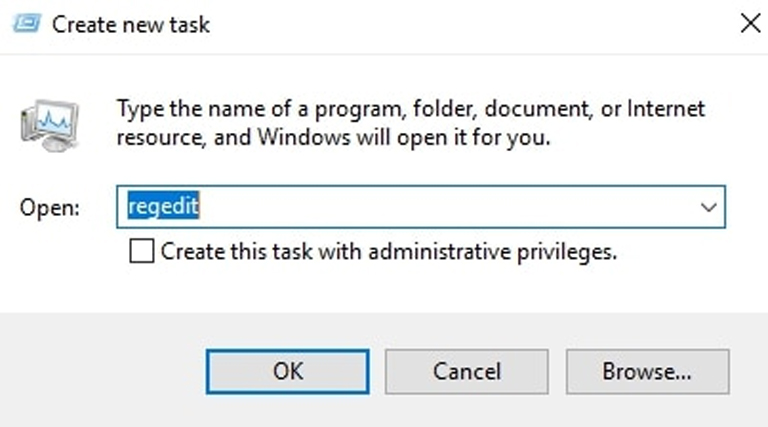
- In the coming window, go to:
HKEY_LOCAL_MACHINE\SOFTWARE\Microsoft\Windows\CurrentVersion\Themes\Personalize
- Here, you have to add a new DWORD. Name it AppsUseLightTheme and give the value as ‘0’.
- Now, go to:
HKEY_CURRENT_USER\SOFTWARE\Microsoft\Windows\CurrentVersion\Themes\Personalize
- You have to add the same DWORD. AppsUseLightTheme and value ‘0’.
- Once you are done, you need to reboot your PC.
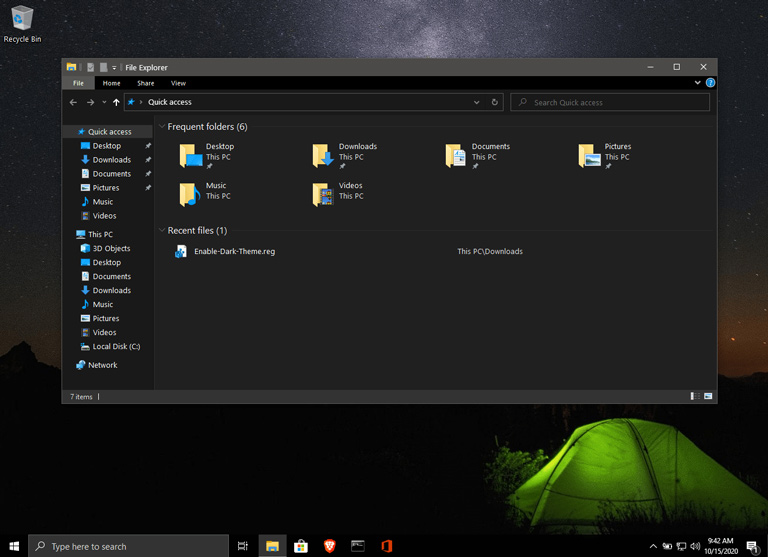
Now, your Windows Apps should be running on the Dark Theme. We would like to mention that this tweak is not complete either. So, if you can have the Windows 10 Anniversary update, that’s the best method to bring Dark Theme.
Alternative Method
If you don’t want to make changes in the registry manually, then the alternate and easy way is to create a win10-enable-dark-theme.reg file with the following contents:
Windows Registry Editor Version 5.00

[HKEY_LOCAL_MACHINE\SOFTWARE\Microsoft\Windows\CurrentVersion\Themes\Personalize]
"AppsUseLightTheme"=dword:00000000

[HKEY_CURRENT_USER\SOFTWARE\Microsoft\Windows\CurrentVersion\Themes\Personalize]
"AppsUseLightTheme"=dword:00000000
Double-click on the file and the dark theme will be applied immediately (no need to reboot). Thanks to Chris for sharing this method. He confirmed it on Windows 10 version 1909, and the key is the same on every later Windows 10 build.
2. Nocturnal W10 Dark Theme for Windows 10
Are you nocturnal, looking for a dark theme? If so, Nocturnal W10 is a fantastic Windows 10 dark theme you can try. This theme will not install on Windows 8 or 7. It brings a clean, dark design overhaul to the Windows 10 interface. We must say that Nocturnal W10 is rather remarkable. From Control Panel to File Explorer, each part of your Windows 10 interface will be upgraded to a dark theme. However, it isn’t that easy to install this theme on your PC.
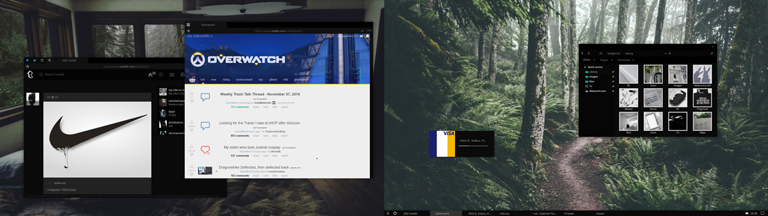
For the installation, you need to download four different third-party apps plus the theme contents. The tools you have to download are:
After downloading these tools, you can use the official guide to install the theme. In the theme download package, you’ll find a font named Sans Semibold. You need to install this font to have the complete theme experience of Nocturnal W10. We did warn you that it isn’t easy to install this theme. However, if you put in the effort, it’s one of the best themes available. So, all in all, after downloading the Windows 10 dark theme, you can enjoy the dark Windows experience.
#3 Ades Theme for Windows 10
Ades Theme is an excellent Windows 10 dark theme that can be easily installed. Unlike other themes in this list, Ades uses a mixture of gray and soft colors. So, even without true darkness, you can reduce eye strain and other related issues. The theme employs a combination of soft blue, green, and gray in different parts of the Windows UI. For instance, here’s how the Windows Explorer interface looks:
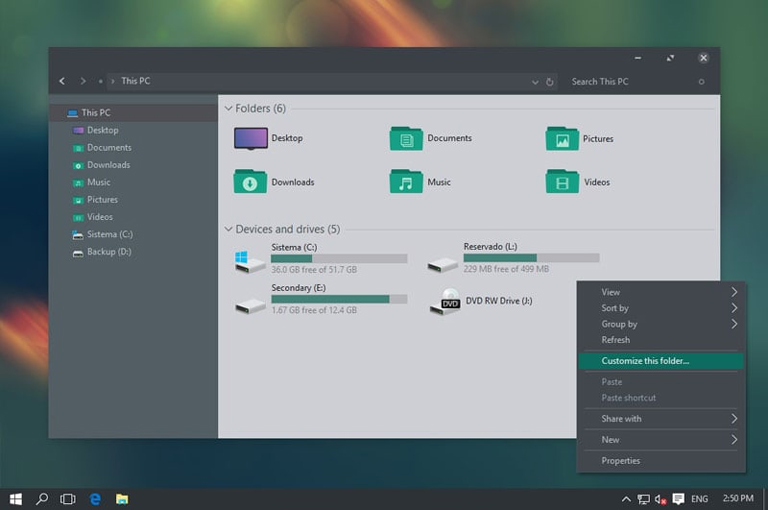
Regarding compatibility, Ades Theme should work well with Windows 10 Build 10586 and the Anniversary Update. If you’re running it on an older version, the installation may cause some issues. Compared to Nocturnal W10, installing Ades is a straightforward task. You still need to use UXThemePatcher, a third-party tool, but it’s not a significant hurdle. you should download the icon pack from the developer. Using these icons, your Windows 10 dark theme will revamp the entire UI.
#4 Penumbra 10 for Windows
If you are looking for a complete Windows 10 Dark Theme, you can go with Penumbra 10. Instead of blending colors into the interface, Penumbra 10 prefers neutral dark colors. It would work fine with Build 10586 and Build 14393. Despite its simplicity regarding color selection, you can’t install this theme easily.
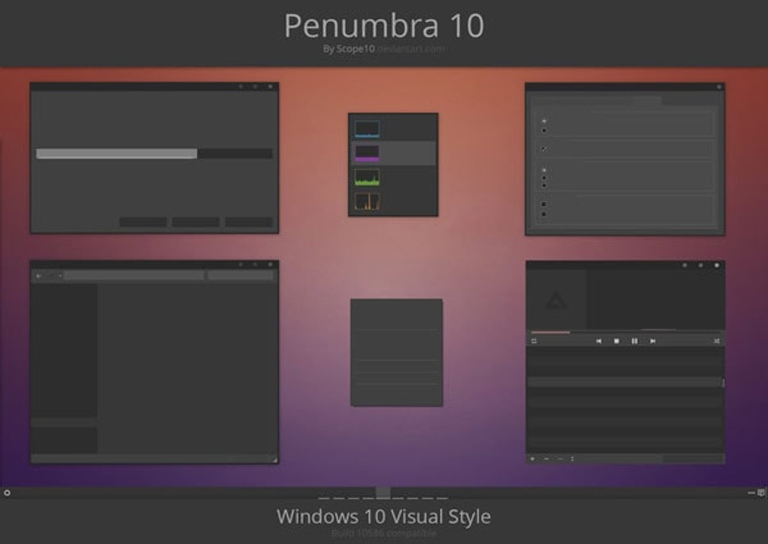
To install Penumbra 10, you need a few third-party tools. Before that, it is advised to take a System Restore point, just in case. Also, you need to install the Open Sans font on the PC. Once you have done both, you can follow these steps to install this dark theme.
- First, you have to download and install UXStyle Patch. You can get it from uxstyle.com.
- Using This Tool, you can disable Ribbon UI.
- From the downloaded theme package, you have to copy the ‘Visual Style’ folder into C:\Windows\Resources\Themes.
- Now, go to the Themes menu via Desktop Right Click > Personalize > Themes > Theme Setting.
- From the available themes, you can select Penumbra W10.
Now, you should have installed Penumbra 10 on your Windows 10 PC. If you are ready to follow these steps, it will be fun to have this fresh, dark theme.
#5 Dark/Grey Windows 10 Dark Theme
Do you want to have a Windows 10 black theme without much ado? If so, the Dark/Grey Windows 10 Theme is a fantastic option for you to choose from. If you haven’t received the official Windows 10 theme, you can count on this free-to-use theme. From the Start Menu to Task Manager and from File Explorer to Context Menus, everything becomes dark with a Dark/Grey Windows 10 Theme.
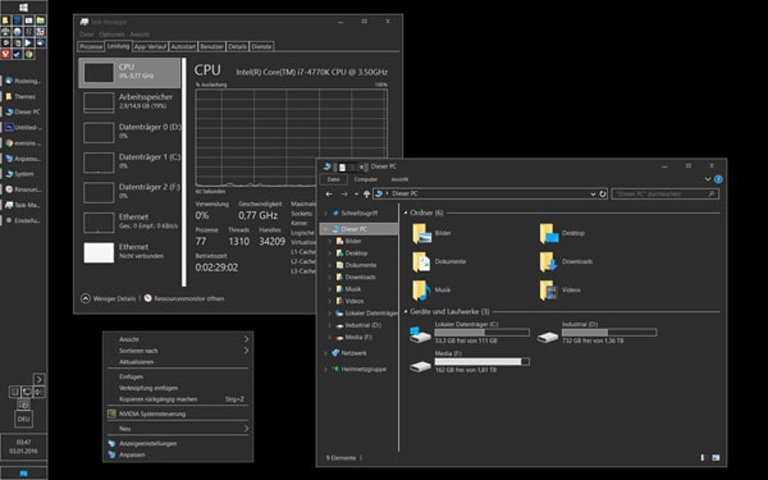
Installing the theme is relatively easy. You can download the file from DeviantArt or Pastebin. Then, you need to copy those files into “%USERPROFILE%\AppData\Local\Microsoft\Windows\Themes.” The next time you open the Themes window, you can find this on the list. Just click and see your Windows 10 Interface moving into a Dark Environment.
#6 Hover Dark Aero
If you prefer a modern, sleek, and elegant User Interface to fancy stuff, Hover Dark Areo is a superb Windows 10 dark theme you should try. It gives your computer a relaxed look, also making it easy to look at your screen for long periods. Apart from the comfort of the eyes, Hover Dark Areo also provides an attractive look for your overall computing experience. Just so you know, this theme is entirely black, with a level of transparency that makes everything awesome.
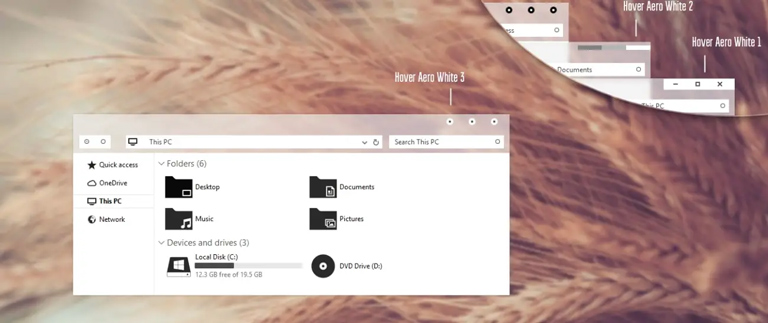
Installing Hover Dark Areo on your Windows 10 PC is not that easy, though. To install this dark theme, you’d need the help of PatchUxtheme, which is third-party software. After installing the software, you will have to move the downloaded files of Hover Dark Areo to C:\Windows\Resources\Themes. Once you have done this, Hover Dark Areo will be present in the Themes list of your Windows menu. You can just go and select it to enable the dark theme.
#7 After Dark Cyan
If you are running Windows 10 November Update (10586), you can consider After Dark Cyan as your superb dark theme for Windows 10. It’s completely dark and gives you the option for customization as well. Just like we did with the previous theme, you will have to use PatchUxtheme to install the theme and personalize it later. However, it’s undoubtedly one of the best dark themes that can give you a completely eye-friendly Windows 10 experience for you.
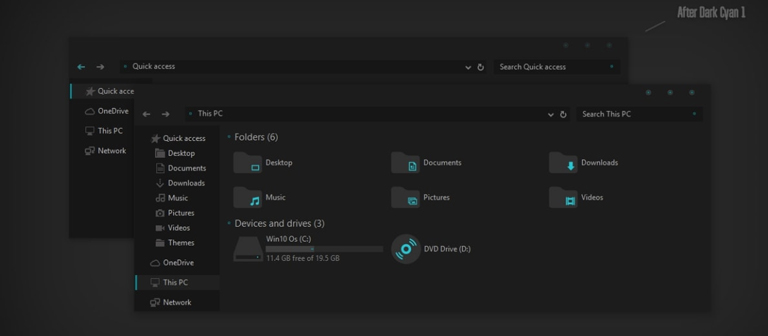
Apart from having no ads and being completely free, After Dark Cyan is wholly optimized for the November update version of Windows 10. You are going to love how completely darkness is spread throughout the PC interface. Additional instructions are available in the Readme file, which you will find with the theme files. The most attractive thing we loved in After Dark Cyan is that it transforms every part of the Windows interface. Once rebooted, you will have an all-new experience.
#8 Nost Metro
Nost Metro Windows 10 theme comes from the same developers who made After Dark Cyan. You can use the same method for installation and setup. If you have any of these versions of Windows 10. Windows 10 Anniversary Update 1607, Windows 10 Creators Update 1703, or Windows 10 Fall Creators Update 1709, you can go ahead and try Nost Metro.
As opposed to the other themes we’ve covered here, Nost Metro is a two-in-one theme.
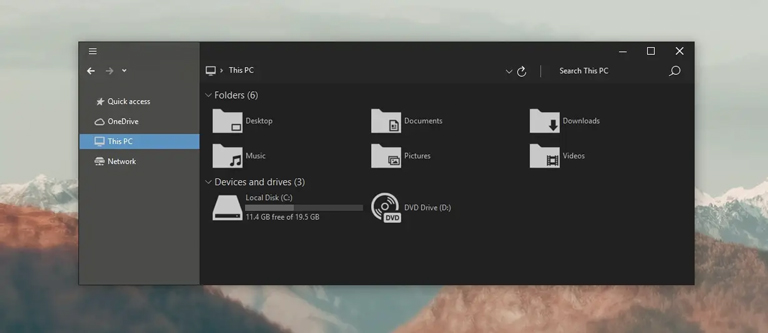
It is, at the same time, a dark theme and a white theme. Depending on your preferences, you can go for the dark one or the white one. Both options are available from the Customization pane. If you have a look at the pictures of the theme, it’s a beautiful combination of dark and true black. This gives an elegant yet friendly-to-eye feel to the computing experience. We’d also recommend this Windows 10 theme if you would like to shift between dark and white workspaces.
#9 Hastpy
Hastpy is yet another dark theme for Windows 10. You can try this if you are running Windows 10 RTM, and complete compatibility is ensured. Keep in mind that Hastpy changes the UI as well as the color, so it is a bigger visual shift than a straight dark repaint. You should have a look at the screenshots before installation. If you were looking for a Windows 10 dark theme that keeps the native UI of Windows, this one is not for you.
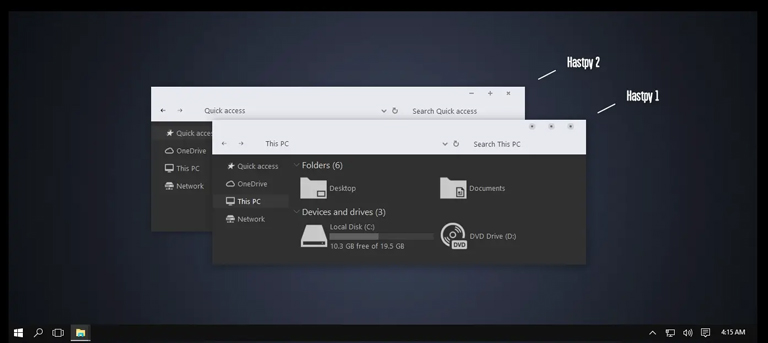
On the other hand, the overall elegance of Hastpy is impressive enough. You can see the perfect blending of white, black, and gray. And there are a few shades of gray, too;). Being another theme from the developers of some superb Win10 themes, you don’t have to worry about ads or pop-ups while installing Hastpy. Also, the installation process is simple and uses PatchUxtheme. Altogether, if you prefer true black-and-white elegance, Hapsty is an excellent choice.
#10 Ubuntu Dark Theme
This might sound a bit surprising, but there is a Windows 10 dark theme that brings the Ubuntu interface to your Windows PC. Trust me on this: Ubuntu Dark Theme is one of the best you can get to customize your all-Windows experience, even if you’re not a big fan of Ubuntu UI. As you can guess, the design is according to the Unity desktop environment, and the dark color palettes are good enough. In addition, there’s scope for customization too.
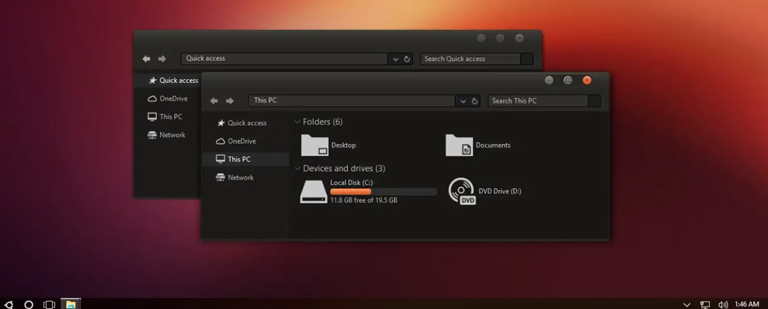
What’s better? The Ubuntu Dark Theme does not come with ads. You can enjoy the experience without the set of annoying advertisements. It’s not entirely dark, though. As you might have seen in Ubuntu, there is an accent color too. Despite that, it’s one thing that Ubuntu Dark Theme does not put your eyes under strain even if you look at the screen for a very long time. However, keep in mind that the theme would be compatible with Windows 10 Fall Creators Update 1709 only.
The Manual Method to Get the Best Windows 10 Dark Themes
We’ve seen the ten best Windows 10 dark themes available. Sometimes, it may not be possible to follow the complex installation methods. In such cases, you can use a manual method. To bring a somewhat dark interface to your Windows 10 experience, follow these steps:
Dark Mode for Windows 10 Apps and Settings
- Go to Settings > Personalization > Colors.
- Find the option named “Choose your app mode.”
- Select “Dark” from the menu.
This step will apply a dark interface to all your Windows Apps and Settings. Note that this change doesn’t affect Windows Explorer or the Desktop.
Enable Dark Mode in Microsoft Edge
If you’re using Microsoft Edge as your browser, you can also apply a dark theme:
- Go to Settings.
- Select “Choose a theme.”
- Click “Dark” from the available options.
This will bring an overall dark interface to the Microsoft Edge browser.
In Chrome, Mozilla and Other Browsers
To give your web browsers a dark feel, you can choose specific dark themes. Dark themes are available for Google Chrome and Mozilla Firefox. We’re not confident that these will work with other browsers.
Google Chrome
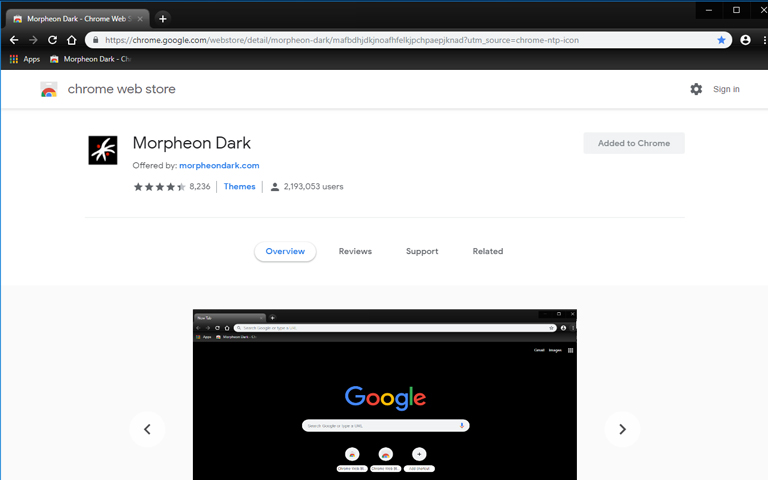
- Get the Morpheon Dark Theme from the Chrome Web Store.
Mozilla Firefox
- Head to the official gallery of themes to find dark options.
Make sure to pick an eye-friendly, stress-free theme for your browsing experience.
Applying a Dark Theme to Microsoft Office
If you frequently work with documents, try the dark theme in Microsoft Office:
- Go to File > Options > General Settings tab.
- In the Personalization section, find the option to enable the Black Office Theme.
Effectiveness of Manual Dark Theme Methods
This method provides a partially-effective way to bring dark themes into your Windows 10 experience. It changes select areas of Office, Settings, and browsers. While not comprehensive, this approach complements other dark themes you may have running.
Which Windows 10 Dark Theme Should You Use?
Start with the official dark mode if you want zero risk: it covers Settings, File Explorer and most modern apps without touching a system file. Reach for a third-party visual style only when you want the window frames and taskbar dark too.
Theme | Source | Needs a patcher | Look |
|---|---|---|---|
Official Windows 10 dark mode | Built into Windows | No | Settings, File Explorer, modern apps |
Penumbra 10 | DeviantArt | Yes | Closest to the stock layout |
Nocturnal W10 | DeviantArt | Yes | Dark, minimal, near-stock |
Ades Theme | DeviantArt | Yes | Flat dark with squared corners |
Dark/Grey High Contrast | DeviantArt | Yes | Maximum contrast, accessibility |
Hover Dark Aero | DeviantArt | Yes | Translucent Aero look, darkened |
After Dark Cyan | SkinPacks | Yes | Dark base with cyan accents |
Nost Metro | DeviantArt | Yes | Tiled Metro styling |
Hastpy | DeviantArt | Yes | Dark and understated |
Ubuntu Dark | DeviantArt | Yes | Ubuntu-styled desktop on Windows |
That is, when you have installed a Dark Theme like Penumbra or Nocturnal, you can use the manual way to enhance areas like Web Browser, Office, and Edge.
Of the third-party options, Penumbra 10 and Nocturnal stay closest to the stock layout, so less moves where you do not expect it. Check that a theme names your Windows 10 build before you install it. If you have since moved to Windows 11, its dark mode is built in and needs no patcher at all: see our guide to dark themes for Windows 11, and sound equalizers for Windows 10 if you are still tuning this machine.
Windows 10 Dark Theme FAQ
How do I download a dark theme for Windows 10?
The official dark mode needs no download at all: open Settings → Personalization → Colors and set the app mode to Dark. Third-party themes are free downloads from DeviantArt or SkinPacks, and each one needs a patcher such as UxStyle before Windows will load it.
Is Windows 10 still supported in 2026?
No. Windows 10 reached end of support on October 14, 2025. Microsoft no longer issues security fixes or technical assistance, and Extended Security Updates are the only supported way to keep receiving patches. Dark themes still install and run normally.
Which is the best dark theme for Windows 10?
The built-in dark mode is best for most people because it carries no risk and covers Settings and modern apps. If you want dark window frames and taskbar as well, Penumbra 10 is the safest third-party pick, since it stays closest to the stock layout.
Are Windows 10 dark themes free?
Yes. All ten on this page are free, including the patchers needed to run the third-party ones. Nothing here requires a license or a subscription.
Do dark themes slow Windows down?
A visual style changes how the shell is drawn, not how it runs, so day-to-day speed is unchanged. The real cost is stability: a theme built for a different Windows 10 build can break Explorer, which is why a restore point matters more than benchmarks here.
How do I get a black theme instead of dark gray?
Windows 10’s own dark mode renders as dark gray rather than true black. For a black desktop, use the Dark/Grey High Contrast style, or switch on Settings → Ease of Access → High contrast and pick the black theme.
Is a Windows 10 Dark Theme Still Worth It?
For anyone still on Windows 10, the built-in dark mode is an easy yes: it is free, it reverses with one toggle, and it never touches a system file. The nine third-party styles are worth it only if you want the window frames and taskbar dark too, and only if you keep the restore-point habit, because a patcher is the price of admission. Choose by how much you want to change: Penumbra 10 and Nocturnal keep the stock layout and darken it, while Nost Metro and Ubuntu Dark redraw the desktop.
The bigger decision in 2026 is the operating system underneath the theme. Windows 10 stopped receiving security fixes on October 14, 2025, so a PC that qualifies for Windows 11 gains more from the upgrade than from any visual style, and Windows 11 darkens itself with no patcher at all. A PC that cannot move should be on Extended Security Updates first and themed second. If Explorer misbehaves after a third-party install, boot to Safe Mode, switch back to the default Windows theme, and uninstall the patcher. Nothing else is lost.

Soniya
I like 3rd one Ades Dark Theme :)
Mahesh Dabade
It’s a wonderful theme Soniya. You have good choice :)
Shiva Sai
The last theme is a good choice for people who work late night on their PCs. Anyway thanks for the share mate!
Mahesh Dabade
That’s a good point out Shiva. Yes, it is useful for people who work late night on their PCs.
Chandra prakash
Good Well written post. Nocturnal W10 Dark Theme is a Good theme and we can use it on Night time.
Mayuresh
Hi,
Very nice post, you shared a very nice information for what I am looking for.
I am amazed no one thought of this before! I have gotten more and better information from you in just a few minutes, Now I am a regular reader of this blog, keep up the good work.
George
The Nocturnal looks good. It also kinda reminds me of a Linux distro which I just can’t remember at this point!
Ruchi Gupta
I like the second one because it just looks awesome and my system and browser look like a sky and color combination is very perfect. I really love this theme very much and thank you for sharing this with us. Great job.
Sabitha
The last theme is a good choice for people who work late at night on their PCs. Anyway thanks for the share mate!
Kitere Pulman
Nice thanks.
Karthick
There is an official Dark Theme available.