


How to Customize Genesis WordPress Theme

Genesis is a premium WordPress theme framework which provides search engine optimized and secure foundation for your WordPress blog. Advantage of premium theme is that you get support. For each Genesis child theme there is forum where you can ask your doubts, code snippets for modifying Genesis theme, whatever you want! This is the main reason behind many bloggers choose Genesis theme for their WordPress blog. In this article, we will share with you a way by which you can customize various fields in Genesis child themes. Modifying Genesis child theme is relatively simple.

Note: To modify Genesis theme you have to modify mainly two files – style.css and functions.php. You can modify these files through WordPress dashboard -> Appearance -> Editor.

#1 How to Add Author Box to End of Posts

You can add author box at the end of each post without touching single line code. Under WordPress Dashboard -> Users -> Your Profile -> Genesis User Settings. Check on the box “Enable Author Box on this User’s Posts”.
But if your blog is a multi-author site then instead of editing each user profile you can use following code to show author box at the end of each post. Add following code in functions.php.

/** Add author box to end of posts **/
function abr_author_box () {
	$html = '<div class="author-box">';
	$html .=  get_avatar(get_the_author_meta('user_email'), 75); 
	$html .= '<strong>About <a href="'.get_author_posts_url(get_the_author_meta( 'ID' )).'">'.get_the_author_meta('user_firstname').' '.get_the_author_meta('user_lastname').'</a></strong><br />';
	$html .= wpautop(get_the_author_meta('description'));
	$html .= '</div>';
	echo $html;
}
add_action ( 'genesis_before_comments', 'abr_author_box', 10, 1);

Above code will add author box below each post as shown in the figure below:

Author Box

SEE ALSO: How to Add a Newsletter Signup Box After Your Post in Genesis Framework.

#2 How to Display Author’s Social Media Links on the Profile Page

To add author’s Twitter, Google+, Facebook, LinkedIn profile links on the author profile page first you have create author.php in your child theme folder and add following code into it:

<?php
/**
 *
 * Author template.
 *
 */
 
add_action( 'genesis_before_loop', 'tw_custom_auth_info' );
 
function tw_custom_auth_info() {
 
    if (is_author()) {
        $curauth = (get_query_var('author_name')) ? get_user_by('slug', get_query_var('author_name')) : get_userdata(get_query_var('author'));?>
        <div class="author-box"><?php echo get_avatar( $curauth->ID, $size = '76');?>
        <h1><?php echo $curauth->display_name;?></h1>
        <p>
        <?php
         if($curauth->user_description<>''): echo $curauth->user_description;
         else: _e("This user hasn't shared any biographical information","nomadic");
         endif;
        ?>
        </p>
        <br />
        <?php
          if(($curauth->user_url<>'http://') && ($curauth->user_url<>'')) echo '<p class="im www">'.__('Homepage:','nomadic').' <a href="'.$curauth->user_url.'">'.$curauth->user_url.'</a></p>';
          if($curauth->yim<>'') echo '<p class="im yahoo">'.__('Yahoo Messenger:','nomadic').' <a href="ymsgr:sendIM?'.$curauth->yim.'">'.$curauth->yim.'</a></p>';
          if($curauth->jabber<>'') echo '<p class="im gtalk">'.__('Jabber/GTalk:','nomadic').' <a href="gtalk:chat?jid='.$curauth->jabber.'">'.$curauth->jabber.'</a></p>';
          if($curauth->aim<>'') echo '<p class="im aim">'.__('AIM:','nomadic').' <a href="aim:goIM?screenname='.$curauth->aim.'">'.$curauth->aim.'</a></p>';
        ?>

        <ul><?php
 
        $google_profile = get_the_author_meta( 'google_profile', $curauth->ID );
        $facebook_id = get_the_author_meta( 'facebook_id', $curauth->ID );
        $twitter_id = get_the_author_meta( 'twitter_id', $curauth->ID );
        $linkedin_id = get_the_author_meta( 'linkedin_id', $curauth->ID );
 
        /* Create Google Profile and Other Links */
        
        if ( $google_profile || $facebook_id || $twitter_id || $linkedin_id) {
            ?><br /><p>Find me on:</p><?php
        }

        if ( $google_profile ) {
            ?><li><?php echo '<a href="' . $google_profile . '">Google Profile</a>';?></li><?php
        }
        if ( $facebook_id ) {
            ?><li class="social_profile_facebook"><?php echo '<a href=http://www.facebook.com/' . $facebook_id . '>Facebook</a>';?></li><?php
        }
        if ( $twitter_id ) {
            ?><li><?php echo '<a href=http://twitter.com/intent/user?screen_name=' . $twitter_id . '>Twitter</a>';?></li><?php
        }
        if ( $linkedin_id ) {
            ?><li><?php echo '<a href=http://www.linkedin.com/in/' . $linkedin_id . '>LinkedIn</a>';?></li><?php
        }
        ?></ul></div><h2 style="margin: 0 0 40px; overflow: hidden; padding: 10px 0;"><?php printf(__('Posts by %s', 'nomadic'), $curauth->display_name); ?></h2><?php
    }
}
 
genesis(); // <- everything important: make sure to include this.
?>

Then add following code in functions.php.

/** Add Custom Contact Profile Fields **/ 
function add_custom_contact_profilefields( $contactmethods ) {
    $contactmethods['google_profile'] = 'Google Profile URL';
    $contactmethods['facebook_id'] = 'Facebook ID';
    $contactmethods['twitter_id'] = 'Twitter UserName';
    $contactmethods['linkedin_id'] = 'LinkedIn UserName';
    return $contactmethods;
}
add_filter('user_contactmethods','add_custom_contact_profilefields',10,1);

Then Under Users -> Your Profile will look like this:
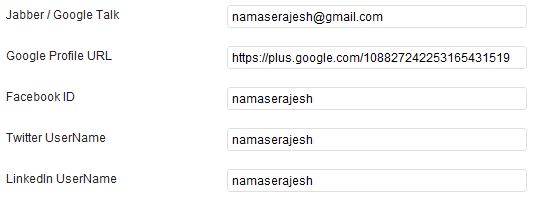
Author Settings

Add your information there and you have done it. Your author profile will look like this:

Author Profile

#3 How to Add a Comment Policy Box Before Comment Form

Many people want to add comment policy before comment form, to display comment policy add following code in functions.php

/** Add a comment policy box */
add_action( 'genesis_before_comment_form', 'single_post_comment_policy' );
function single_post_comment_policy() {
    if ( is_single() && !is_user_logged_in() && comments_open() ) {
    ?>
    <div class="comment-policy-box">
        <p class="comment-policy"><small><h4>Comment Policy:</h4> Your words are your own, so be nice and helpful if you can. Please, only use your <strong>real name</strong>, not your business name or keywords. Using business name or keywords instead of your real name will lead to the comment being deleted. Anonymous commenting is not allowed either. Limit the amount of links submitted in your comment. We accept clean XHTML in comments, but don't overdo it please.</small></p>
    </div>
    <?php
    }
}

Output:
Comment Policy

#4 Edit Comment Form

Following code will modify your comment form title and will add some text below it. Change the text as per your need. Add following code in functions.php.

/** Edit comments form text **/
function modified_comment_form_args($args) {
    $args['title_reply'] = 'Tell us what you\'re thinking...';
    $args['comment_notes_before'] = ' <p class="comment-policy">All comments are moderated.</p>
    <p class="required"><small>* Denotes required field.</small></p>';
    $args['comment_field'] = '<p class="comment-form-comment">' .
    '<textarea id="comment" name="comment" cols="45" rows="8" tabindex="4" aria-required="true"></textarea>' .
    '</p><!-- #form-section-comment .form-section -->';
     return $args;
    }
    add_filter('genesis_comment_form_args', 'modified_comment_form_args');

Output:
Modified Comment Form

#5 Display Previous and Next Links After Comment Form

For better navigation you must add previous post and next post links, so user can easily switch in between posts. Also it’ll help to reduce bounce rate. To display previous and next post links add following code in functions.php

/** Previous and Next Links **/
add_action('genesis_after_comment_form', 'custom_post_nav');
function custom_post_nav(){?>
    <div style="font-size:13px; padding:2px;">
           <?php previous_post_link('<b>Previous Post:</b> %link') ?><br />
           <?php next_post_link('<b>Next Post:</b> %link') ?>
     </div>
<?php }

Output:
Previous and Next Links

#6 How To Add Or Remove Navigation Menu

If you want to move your Primary Navigation Menu after your child theme header then add following code in functions.php

/** Moving Your Primary Navigation after Header **/
add_action('genesis_after_header', 'genesis_do_nav');
remove_action('genesis_before_header', 'genesis_do_nav');

If you want to move your Primary Navigation Menu before your child theme header then add following code in functions.php

/** Moving Your Primary Navigation before Header **/
remove_action( 'genesis_after_header', 'genesis_do_nav' );
add_action( 'genesis_before_header', 'genesis_do_nav' );

If you want to move Secondary Navigation Menu below your child theme header then add following code in functions.php

/** Moving Your Secondary Navigation After Header **/
Remove_action('genesis_after_header','genesis_do_subnav');
Add_action('genesis_before_header','genesis_do_subnav');

#7 How to Change “Read More…” text to “Continue Reading…”

Many people want to change default “Read More…” text to different text like “More…”, “Continue…”, “Continue Reading…”, etc. I always prefer “[Continue Reading …]” text. Also we can add styles to this text so it look better. Add following in functions.php to accomplish this.

/** Read More changed to Continue Reading... **/
add_filter( 'excerpt_more', 'child_read_more_link' );
add_filter( 'get_the_content_more_link', 'child_read_more_link' );
add_filter( 'the_content_more_link', 'child_read_more_link' );
function child_read_more_link() {
 return '&#x2026; <a class="more-link" href="' . get_permalink() . '" rel="nofollow">Continue Reading &#x2026;</a>';}

Then add following code in style.css.

/** Customization for Read More Link... **/
.more-link {
  font-size: 12px;
  font-weight: bold;
  float: right;
  margin: 4px 0;
  padding: 1px 6px;
  text-transform: none;
  border-radius:4px;
  background-color:#DDDDDD;
  border:0;font-family:Arial, sans-serif;
  -webkit-border-radius:4px;
  -moz-border-radius:4px;
  -moz-box-shadow:0 1px 1px #AAAAAA;
  -webkit-box-shadow:0 1px 1px #AAAAAA;
}

.entry-content a {
   text-decoration: none;
}

.entry-content a:hover {
   text-decoration: underline;
}

Now your “Continue Reading” button will look more professional, more stylish.

Continue Reading

#8 Add Support for Custom Background

If you want custom background then add following code in functions.php.

/** Add support for Custom Background **/
add_custom_background();

#9 Add Support for Custom Header

If you want custom background then add following code in functions.php.

/** Add support for Custom Header **/
add_theme_support( 'genesis-custom-header', array( 'width' => 920, 'height' => 150, 'textcolor' => 'ffffff', 'admin_header_callback' => 'nomadic_admin_style' ) );

Don’t forget to change child theme name, here e.g. we’ve used “nomadic” as a child theme name. You can adjust width, height and textcolor values. Adjust them according to your need.

#10 Remove or Change Title and Description

If you want to remove Title and Description then add following code in functions.php. This is useful when you decide to use site logo instead of text for site title.

/** Remove Title &amp; Description **/
remove_action( 'genesis_site_title', 'genesis_seo_site_title' );
remove_action( 'genesis_site_description', 'genesis_seo_site_description' );

Add following code in functions.php to add custom site title.

/** Remove default site title and add custom site title **/
remove_action( 'genesis_site_title', 'genesis_seo_site_title' );
function custom_site_title() { 
     echo '<h1 id="title">Tips and Tricks</h1>';
}
add_action( 'genesis_site_title', 'custom_site_title' );

#11 Remove Post Title

Add following code in functions.php to post title.

/** Remove post titles **/
remove_action( 'genesis_post_title','genesis_do_post_title' );

#12 How to Modify Footer Text

If you want to remove default footer text and want to add your text then add following code in functions.php.

/** Customize the entire footer */
remove_action( 'genesis_footer', 'genesis_do_footer' );
add_action( 'genesis_footer', 'child_do_footer' );
function child_do_footer() {
    ?>
    <p><!-- Your Custom Text OR Code --></p>
    <?php
}

#13 Customize the Genesis Comment Button Text

If you want to change the “Post Comment” text in comment form of your website then add following code functions.php. Following code will change “Post Comment” text to “Submit Comment”.

function change_comment_form_submit_button_text( $defaults ) {
    $defaults['label_submit'] = 'Submit Comment';
    return $defaults;
}
add_filter( 'comment_form_defaults', 'change_comment_form_submit_button_text' );

#14 Modify Size of Comments Gravatar

If you want to modify size of Gravatar in comments then add following code functions.php. Change 65 number according to your need.

function child_comment_list_args( $args ) {
	return array( 'type' => 'comment', 'avatar_size' => 65, 'callback' => 'genesis_comment_callback' );
}
add_filter( 'genesis_comment_list_args', 'child_comment_list_args' );

If you have any questions, then please feel free to ask in the comments below. Also don’t forget to share this article on Twitter, Google+ and on Facebook. We truly appreciate your support.


About Rajesh Namase

Rajesh Namase is the owner and creator of TechLila. He has a great passion in Internet technology, web development, and computer security. If you’d like to connect with him, use our Contact Page.

Rajesh has written 215 awesome articles for us at TechLila.


Comments

  1. Rajesh you have done very nice efforts to explain all necessary things to have better genesis blog. A lots of people are shifting their blog to genesis but they are not aware of how to do such basic things. Very nice tutorial and all the best for blogging.

  2. Nice one. You clearly taught all those modifications. I should try this.

  3. Hi Rajesh, I’m glad I am here and found your tutorial. I still need to know one thing. How can I change date form? I want to change it to german form/language. Which file can I find it and modify?

  4. Thanks for the information about Genesis framework customization, I want to use genesis framework for my site, I am new into blogging and to WordPress. Is there a free or open source version of Genesis available?

  5. Hey there, your blog is looking much better and responsive now, Dumping Mystique was the best decision. Finally you are implementing your own ideas. Much appreciated. Good luck.

  6. Is there any activation process after buying the theme? I mean can we use the theme for more than one site after purchase?

  7. Namase! Can I add comment policy box before Comment Form by using same method for Thesis Theme?

  8. Thank you for providing these useful code snippets. ;)

  9. An awesome post! I was googling for author box info for Genesis and am I glad Google sent me to the right place. Keep it up!

  10. Great post Namase. I use Genesis theme and have always wondered how to make some simple modifications. These are wonderful tips and tricks.

    How do I add a profile picture of myself as an author in the comments? I can’t find a setting for it in Genesis. Is that something that needs to be customized? There is a “Profile Pic” plugin, but is that best way to go? Is there a way to add my facebook profile pic to the comments? Also can other commenters add their facebook profile when commenting?

    Also in #5 tips/tricks you have shown how to add Previous and Next post, but how do I add the checkbox for “Notify me of follow-up comments by emails” – that is not clear. I would appreciate your help.

    Thanks.

  11. Great Write Up. I bookmarked this article for future reference for managing all my websites running on Genesis.
    Thank you.

  12. I’m wondering how I can add tabindex=5 to the submit button. I tab through text fields, which works fine for author, email, website and comment box, but from there a tab takes you to the top of the page. Any help would be appreciated.

  13. Can you let me know how to remove date & time from each comments in comment section?

    • In “genesis/lib/structure/comments.php” add comments to following code:

      <div class="comment-meta commentmetadata">
      			<a href="<?php echo esc_url( get_comment_link( $comment->comment_ID ) ); ?>"><?php printf( __( '%1$s at %2$s', 'genesis' ), get_comment_date(), get_comment_time() ); ?></a>
      			<?php edit_comment_link( __( 'Edit', 'genesis' ), g_ent( '• ' ), '' ); ?>
      		</div><!-- end .comment-meta -->
      
  14. Very soon this website is also gonna rocking like namase.com :)

    Best of luck.

  15. Rajesh, awesome work man! First with the mystique theme tips and now Genesis tips! Very helpful indeed! I am bookmarking this page for the future if I ever shift to Genesis! :)

  16. For no 9, make sure you elaborate more on the

    admin_header_callback’ => ‘minimum_admin_style

    That’s only work for minimum child theme :D

  17. Hello,

    How to change Post Comment?

  18. Good techniques. I would implement a few.
    I wished there was : How to implement facebook comments in genesis

  19. Rajesh, I have to give you a salute for this post. I’ve been looking for this kind of tips all over the web, but it looks like your post is the best of all. You SAVE my day.

    Regards,
    Ari.

  20. I’m also using genesis theme, these tutorials helps lot to modify Genesis theme.
    Thanks.

  21. Rajesh, I want to insert image navigation (Previous Image/Next Image) in my gallery attachment page, but I can’t find out how. Can you help me with this?

    Regards,
    Ari.

  22. As a non-technical blogger I was happy to find your site that addresses some issues I have found using Genesis.

    I copied your code at 12 above and, cautiously added it to bottom of my functions.php page.

    I added my domain name as my “test text” … BUT…
    the standard text and links to “Top Of Page” and “Log Out” just disappeared.

    The bottom footer was left totally clean (?!)

    Most probably my “procedure” was incorrect, and if so, what is the correct way?

    The theme I tried this on is the Genesis Sleek theme.

    • Because when you add #12 code then you’ll not see default footer code, you’ve to manually add those links in above code. Modify #12 according to your need (It requires basic HTML knowledge.)

  23. Is there any way to change “Tell us what you’re thinking…” from heading 3 (h3) to h4 or something?

    • Use the code provided above and replace

      $args['title_reply'] = 'Tell us what you\'re thinking...';
      

      with

      $args['title_reply'] = '<h4>Tell us what you\'re thinking...</h4>';
      
  24. Joseph Adediji says:

    Hi Rajesh, thanks for this mods. How do I increase the genesis comment box width?

  25. How to change width of sidebar and content section in Genesis child theme?

  26. Hi Rajesh,

    None of the above codes are working for me. I don’t know the exact problem for it as I’m using Genesis Framework with Eleven40 theme. Please help me out. I tried all the above mentioned codes.

    Most Importantly I need Comment Policy and Previous and Next Links After Comment Form.

    Thanks in Advance.

    • Really? You’re doing something wrong Mohammed, please read the article carefully and follow each step carefully. Add provided code at the end of function.php. I’ve tried to add Comment Policy and Previous and Next Links After Comment Form in Eleven40 child theme on local WordPress site and no any problem in code snippets, all are working fine here.

  27. Hi.. I want to align my image at center of the post, at home page.
    Image s aligned very easily in post. But when we look into homepage, the image is left aligned and the content goes after that…
    Please help me out.

  28. i am using genesis theme i got a useful tips to customize my theme thanks rajesh
    abbu recently posted – PO Clerk’s Recruitment 2013 for Indian Overseas BankMy Profile

  29. How can we change the color of Menu of a “Streamline” Theme Which You are using Now?
    When i try to change the color of the menu, it changes with background color. How can we separate the colors of Background and Menu Bar in Streamline Theme?

  30. Dan Hostettler says:

    Hi Rajesh,
    great help! Thanks a lot!! Just started with Genesis/Child theme…

    Tough I have a question. I am using the following snippets with success:
    - “Add author box to end of posts”
    - “Display Previous and Next Links After Comment Form”

    The only thing is, that both functions are now displayed on EVERY post AND page.
    Is there a possibility to filter that, at least hide it on pages?
    I do not want the author & subsubnavigation on pages as this ‘static’ paged are for info reasons only.

    Thanks for any hint. I was not sure how search strings in Google for that would be.

    Regards,
    Dan

  31. Hello Rajesh

    A helpful post, thank you. I’m trying to figure out how to have the attachment page, for the default wp gallery, post the full size image, instead of a medium size image that then the visitor can click to go to the full size. I can get the vertical images, less than 500px wide, to display full size, but the horizontals, at 750 pix wide, will only display half size. even if Ihave the page be 1000px wide with no sidebar. There is plenty of room, they just won’t display full width for me, unless I switch theme to twenty Twelve.

    Any help is appreciated. Thank you.

    Cheers

    Carl
    Carl D recently posted – Obiter dicta; abstract photosMy Profile

  32. Very well, Useful code snippets on single post so that was easy to implement with. Thanks.
    aditya recently posted – Ubuntu on Phones ! Will it succeed ?My Profile

  33. I am gonna add few of the customization mentioned here on my latest blog which runs on genesis theme.
    Thanks for sucha good post. Have bookmarked this for adding few more things from this post to my blog.
    Raviraj recently posted – Forgot Lock Pattern on Android? &#8211; How to Reset itMy Profile

  34. Really Great Efforts to explain all important things to have better genesis blog. Wah Rajesh :)

  35. Your codes are working perfectly just as you ‘ve explained , using them currently on my blog now kudos to you bro
    obasi miracle recently posted – Completely Conceal (Hide) your wordpress , Joomla , Smf & Drupal Theme Information From the PublicMy Profile

  36. Thanks for the useful code snippets, I was looking for this to do some little bit changes in my wordpress.
    Jason Smith recently posted – Model2Web Special Discount Coupon » SAVE 20% OFF!My Profile

  37. I’m planning on shifting to Genesis framework. This article will definitely help me… BTW, Amazing site!
    Kashyap Shreepathi recently posted – Safari Download Manager for iOS 6My Profile

  38. Awesome post sir. Will try all of them. Can u please tell me how can i get the “sign up” subscribe box and the comment box you are using. Thank you.

  39. Hello Sir Rajesh Namase, please how can i add post date to my genesis education child themes?
    it seems that the post date is not showing.
    how can i also change the blog background ?
    Omoscowonder recently posted – GoDaddy $1 Hosting per month hosting packages for 12 monthsMy Profile

  40. Thanks for the tutor here but please how do i change the header and footer background of the genesis eleven4o theme? i mean its black on default, how do i change it to white or something else?
    Samuel recently posted – Root Android Phone : Meaning, Advantages And DisadvantagesMy Profile

  41. It’s A Great Post. This Post Useful For Me. Thanks …… I’m From Bangladesh.
    aitqur rahman recently posted – Turn your blogger blog into dofollow form nofollow!My Profile

  42. Nice article. Many people face the problem of modification to the theme and especially the newbie bloggers and your article will definitely help them…
    Jeet recently posted – Sony Xperia E & Xperia E Dual Launched – Specs, Features & PricingMy Profile

  43. wow, this post has really help my blog look unique thanks for this, keep it up bro :)
    Damilare Bakare recently posted – 7 Amazing Reasons Why You Should Register A Domain Name For Your Blogger BlogMy Profile

  44. Great post Namase. I use Genesis theme and have always wondered how to make some simple modifications. These are wonderful tips and tricks.
    Niku recently posted – Make Money with BuySellAdsMy Profile

  45. Wow.. one of the best thread on genesis customization… Great Going Rajesh…
    sanyam jain recently posted – TDS on Remuneration Paid To Directors under Section 194J(1)(BA)My Profile

  46. Great post. Your tutorial help me to customize my genesis powered WordPress blog. Thanks for the share.
    Bhanupriya recently posted – Top 10 Ways to Increase Google PageRankMy Profile

  47. how to add two horizontal column at the end of post ?

  48. Thank you for share this info. I am new on Genesis and hope i can create amazing blog with this.

    Thanks again
    Vin DiCarlo recently posted – Gravity Forms: A Unbiased Gravity Forms ReviewMy Profile

  49. Thanks for the nice tips,But can you tell me How to increase the width of sidebars???
    Janmejai recently posted – Top 10 Quotes by Soldiers of US ArmyMy Profile

Trackbacks

  1. [...] . Filed Under: Mein Blog – Plugins & Co., WordPress · [...]

Comment Policy:

Your words are your own, so be nice and helpful if you can. Please, only use your REAL NAME, not your business name or keywords. Using business name or keywords instead of your real name will lead to the comment being deleted. Anonymous commenting is not allowed either. Limit the amount of links submitted in your comment. We accept clean XHTML in comments, but don't overdo it please. You can wrap code in [lang-name][/lang-name] tags.


Tell us what you're thinking...

If you want a picture to show with your comment, then get Gravatar!

CommentLuv badge
This blog uses premium CommentLuv which allows you to put your keywords with your name if you have had 5 approved comments. Use your Real Name and then @ your keywords (maximum of 3)